

When making manual adjustments to classes, you may sometimes need to undo your changes. Class Creator now supports undo across a range of different scenarios, allowing you to reverse simple changes without having to create entirely new classes or load previously saved classes. Here are a few examples.
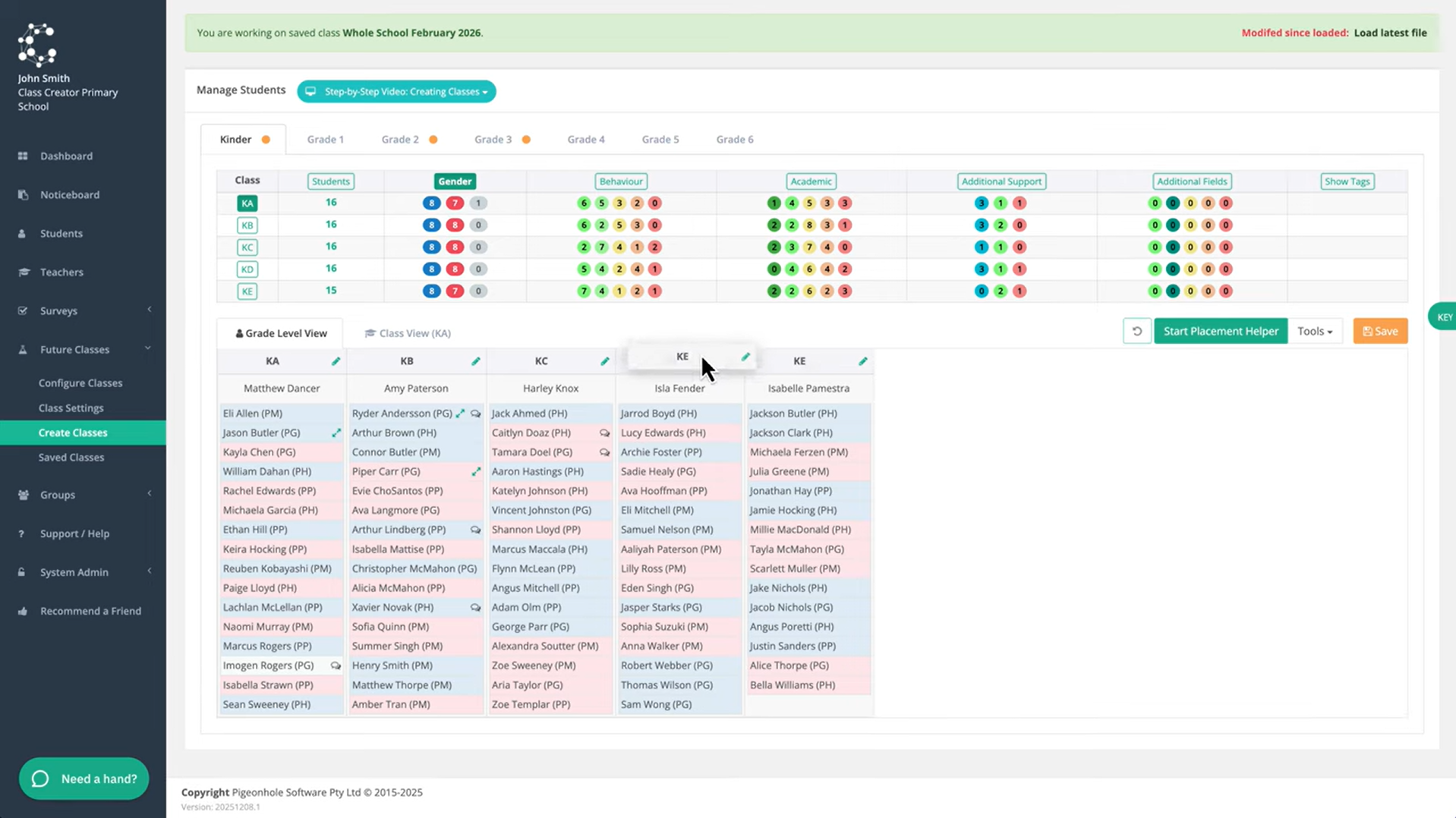
The most common scenario that you may use undo is a simple drag and drop of a student. Using the undo button, the student is moved back. You can also move a student in one grade, then switch to another grade and make another change, and then switch back to the previous grade and make the undo only for that first move. In fact, you can do multiple undo operations up to 50 for each grade level. Just be sure to select the correct grade level for where you want to make the undo.
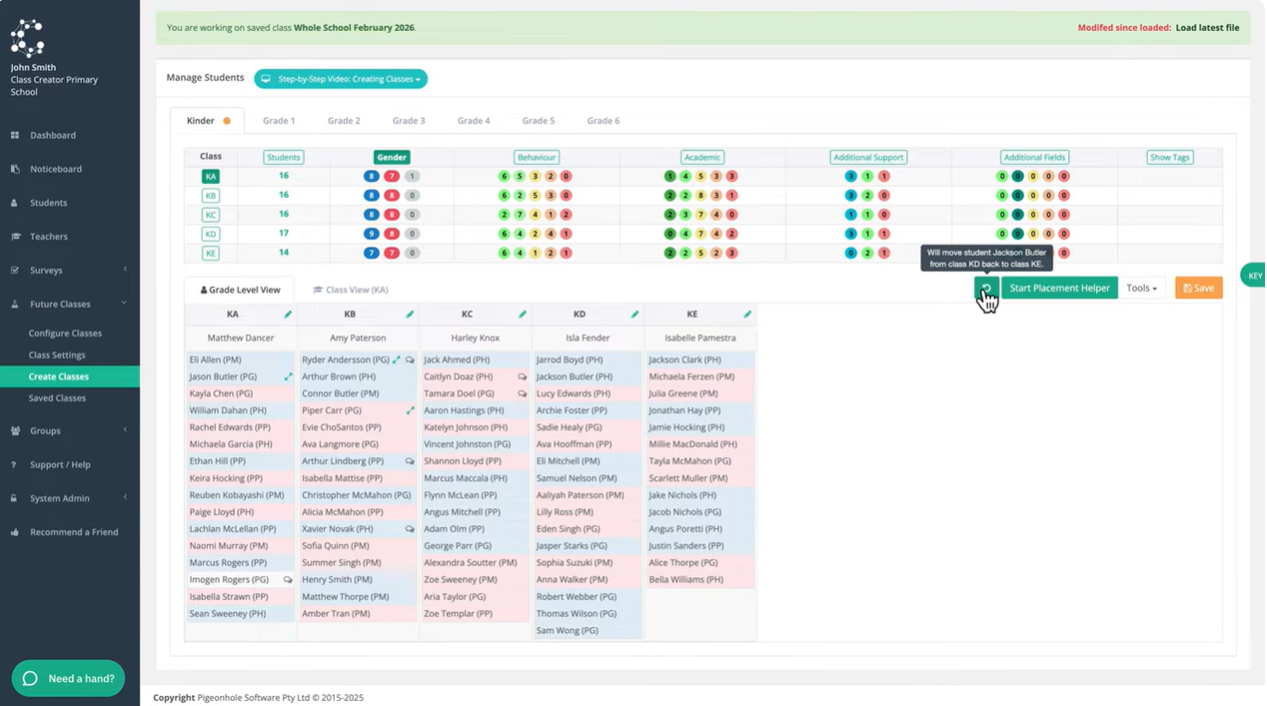
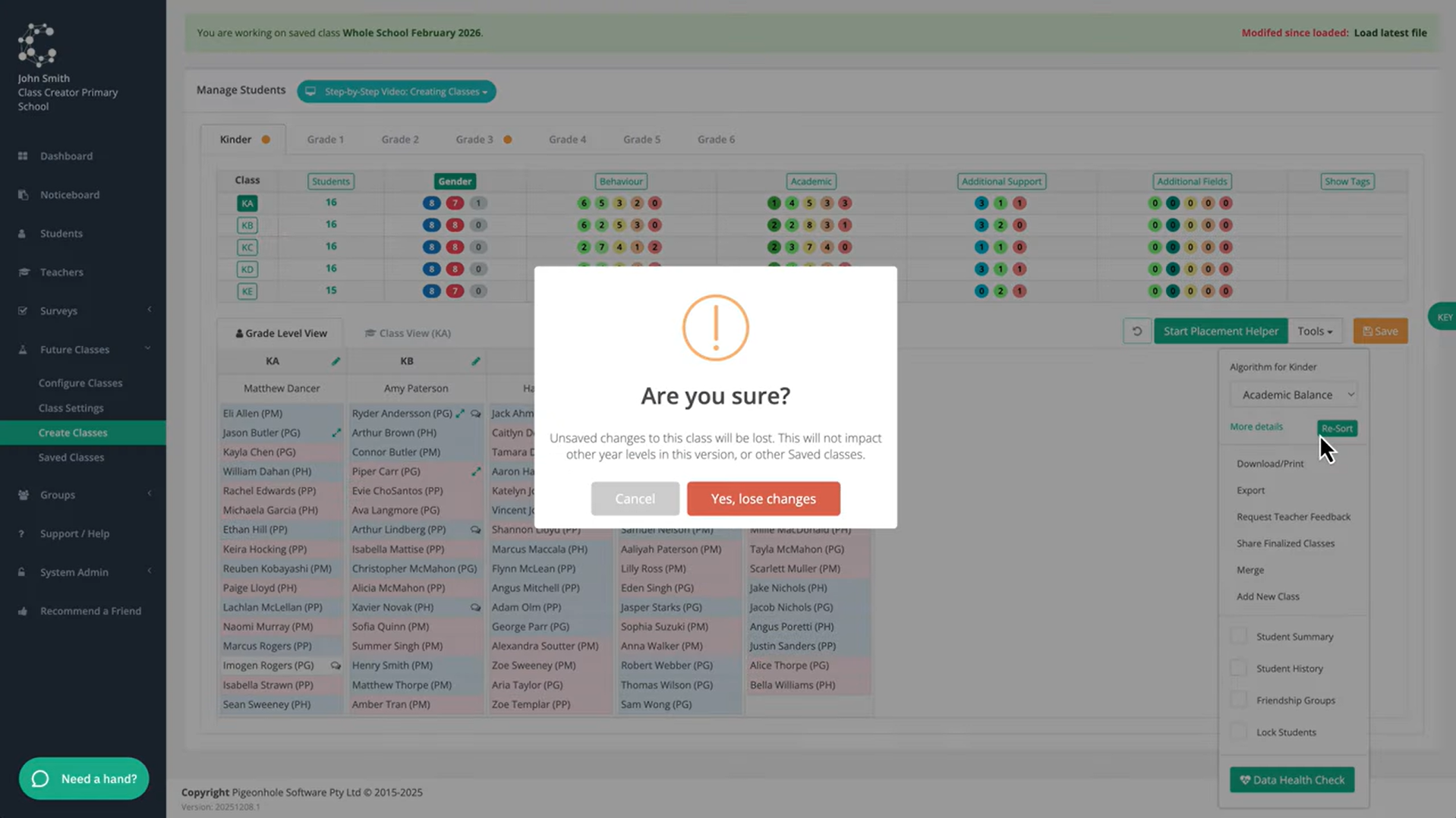
You can also use undo for more complex scenarios like placement helper or when you've resorted your classes using a different algorithm.
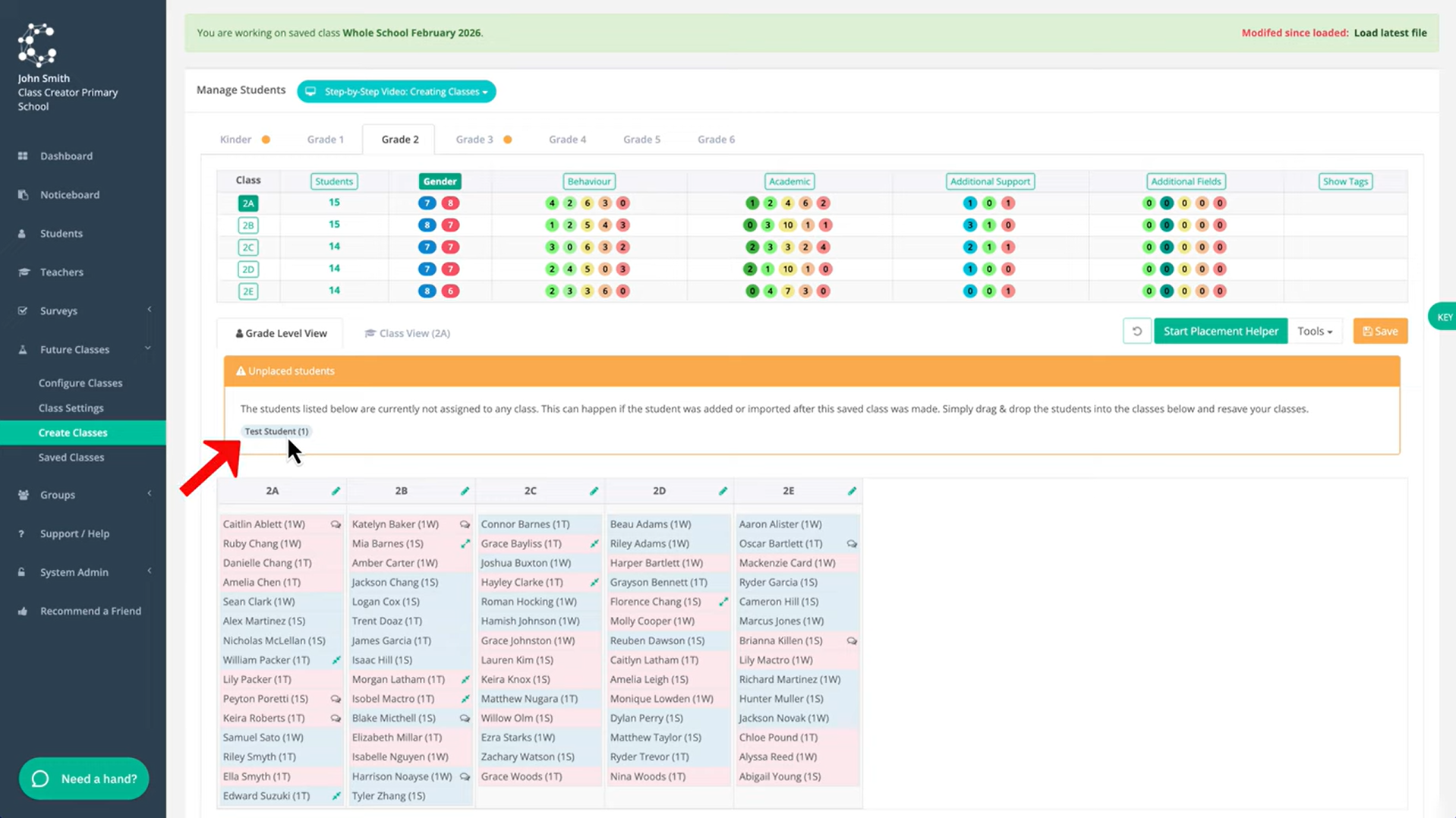
The undo command also applies for unallocated students. In this example, a student will be joining grade 2 and needs to be allocated. I can drag the student into class 2A, but then if I change my mind and click the undo button, the student returns to the unallocated status.
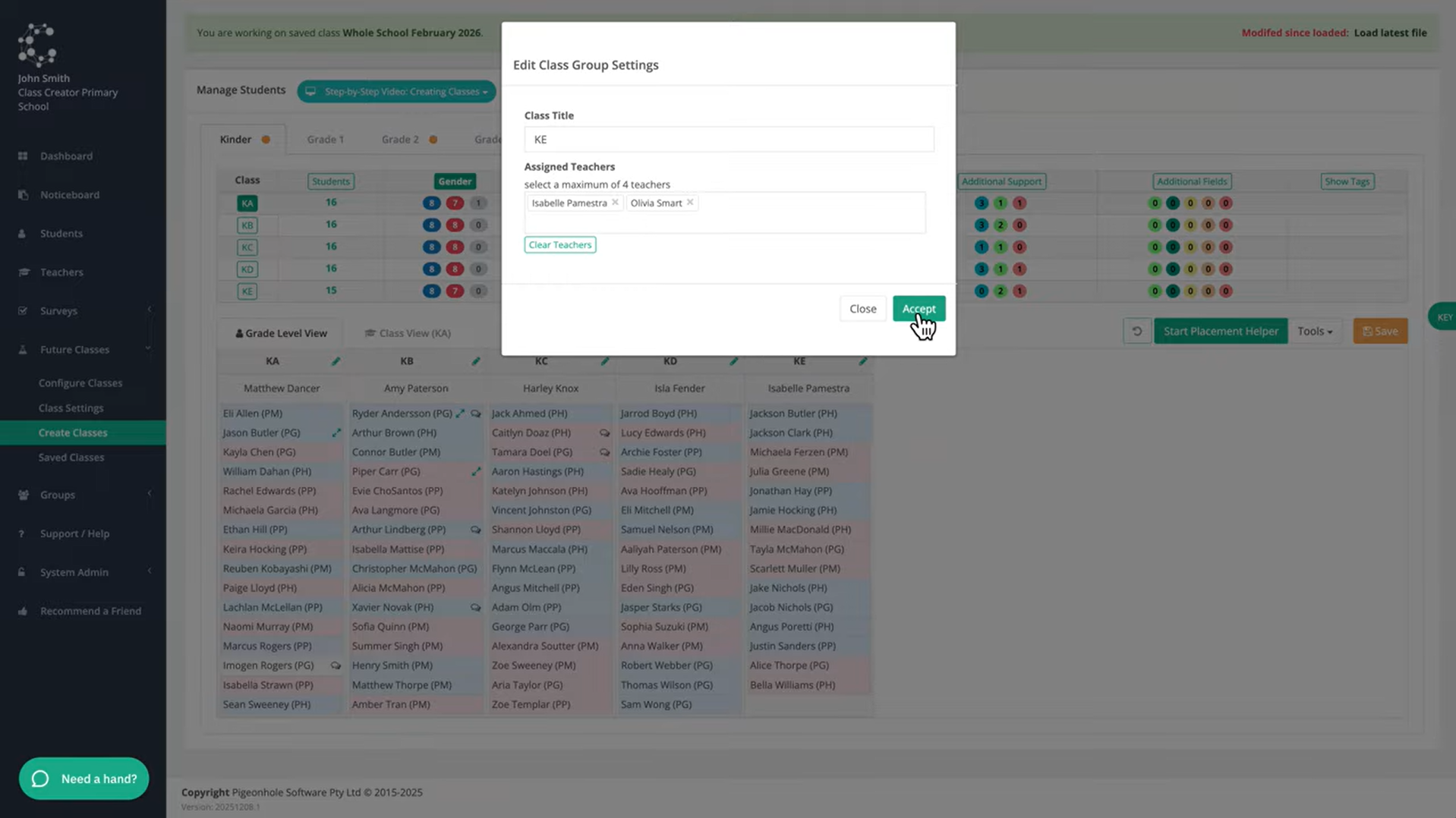
The undo button also works for changes to class names and allocated teachers.
Undo can also be used when rearranging classes. If you drag the class orders on this page, clicking undo will move the class back to its original location.
To learn more about using the undo button, watch the video below: