
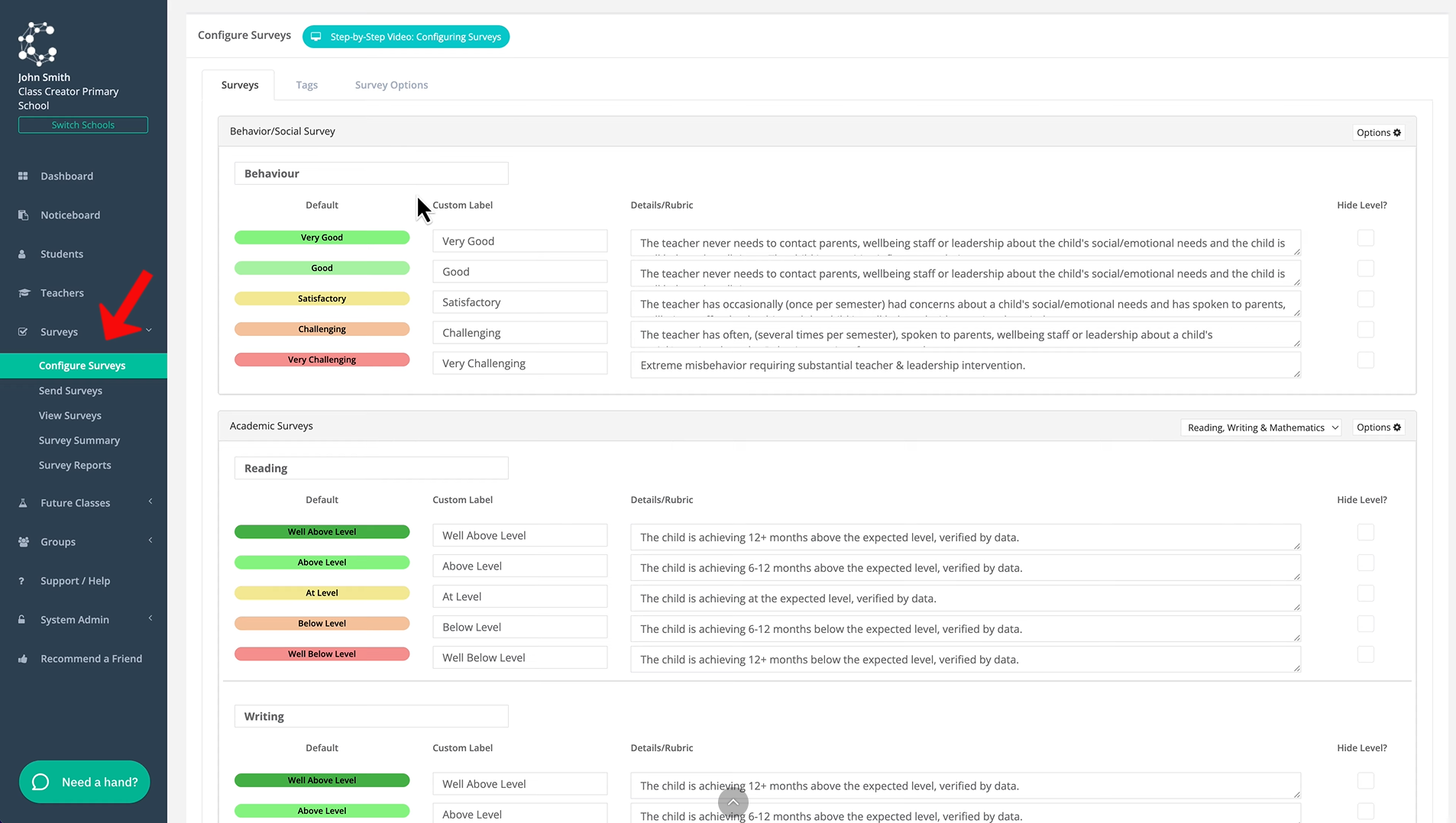
Survey categories in Class Creator are colour-coded so that you can easily tell them apart. To view and configure surveys, navigate to the 'Configure Surveys' page.
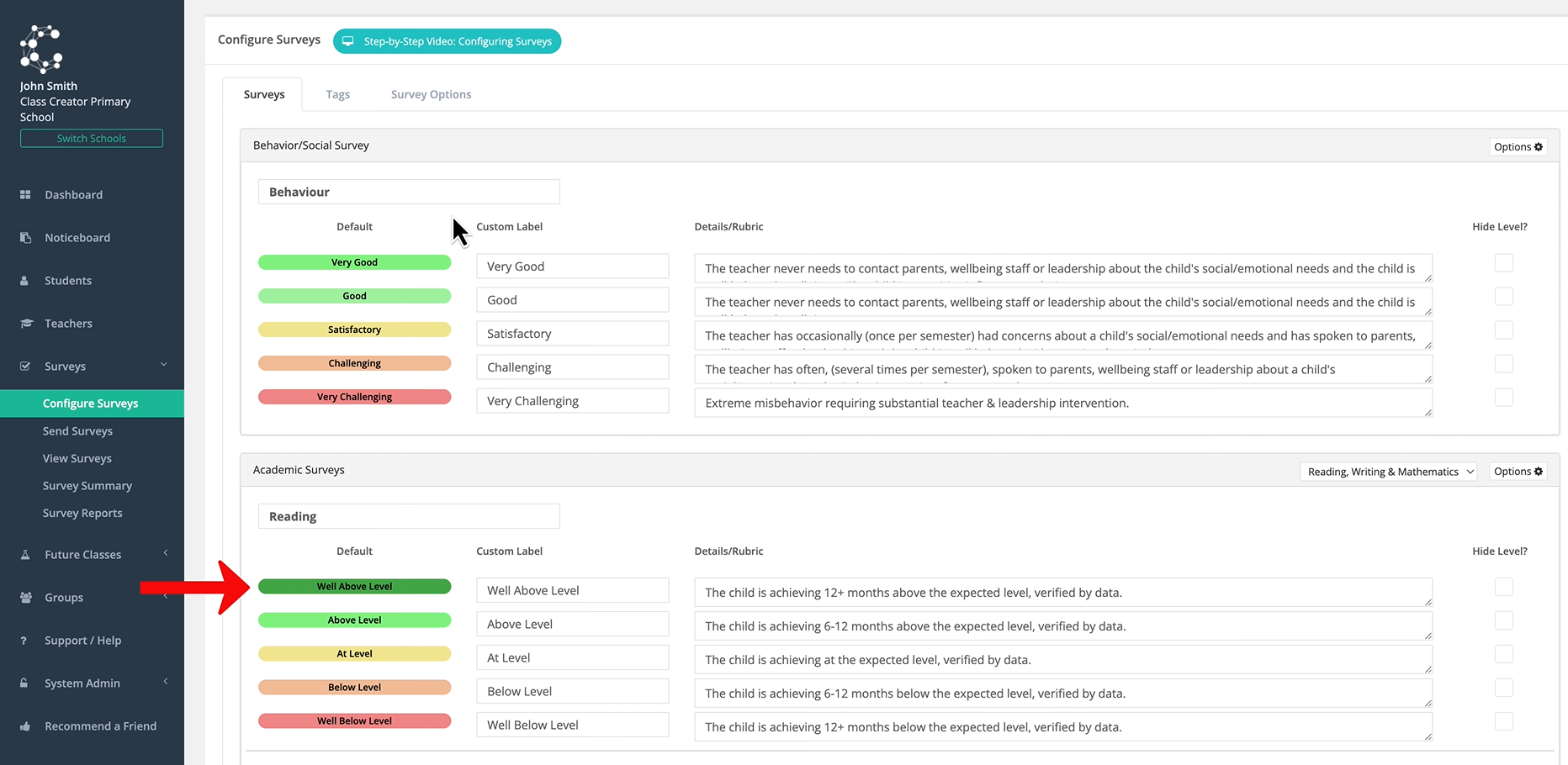
You can also customise the colour codes for surveys to match your school's preferences. Here you can see the default colors for surveys. In the category below, you can see that the color for well above level has been changed to a darker green.
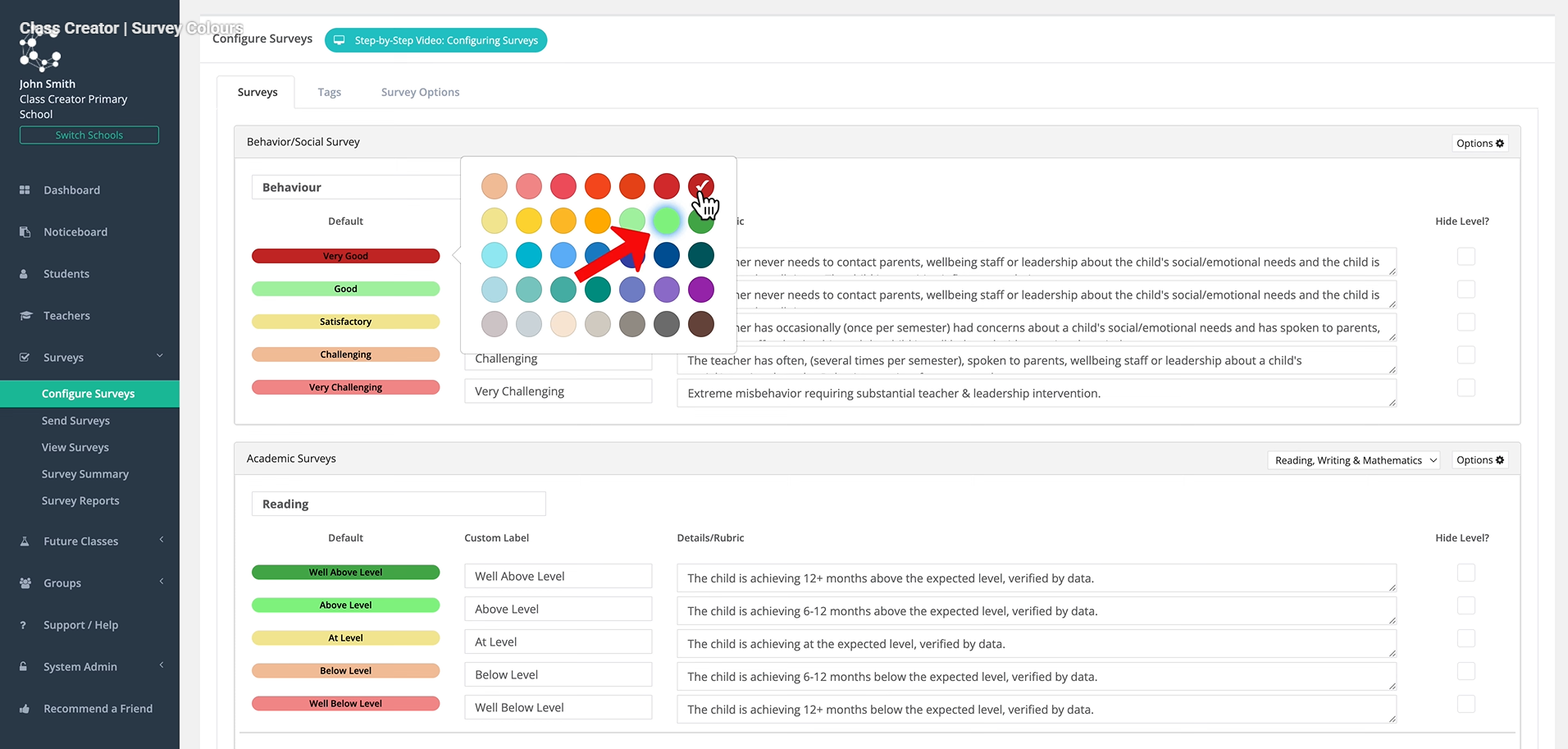
To change a survey colour, simply click on it and select the appropriate color. Notice that the default colour is then highlighted in case you want to change the colour back to the default setting. The new survey color for very good in the behaviour category has been changed to dark red. This colour will then be reflected everywhere that the survey is referenced.
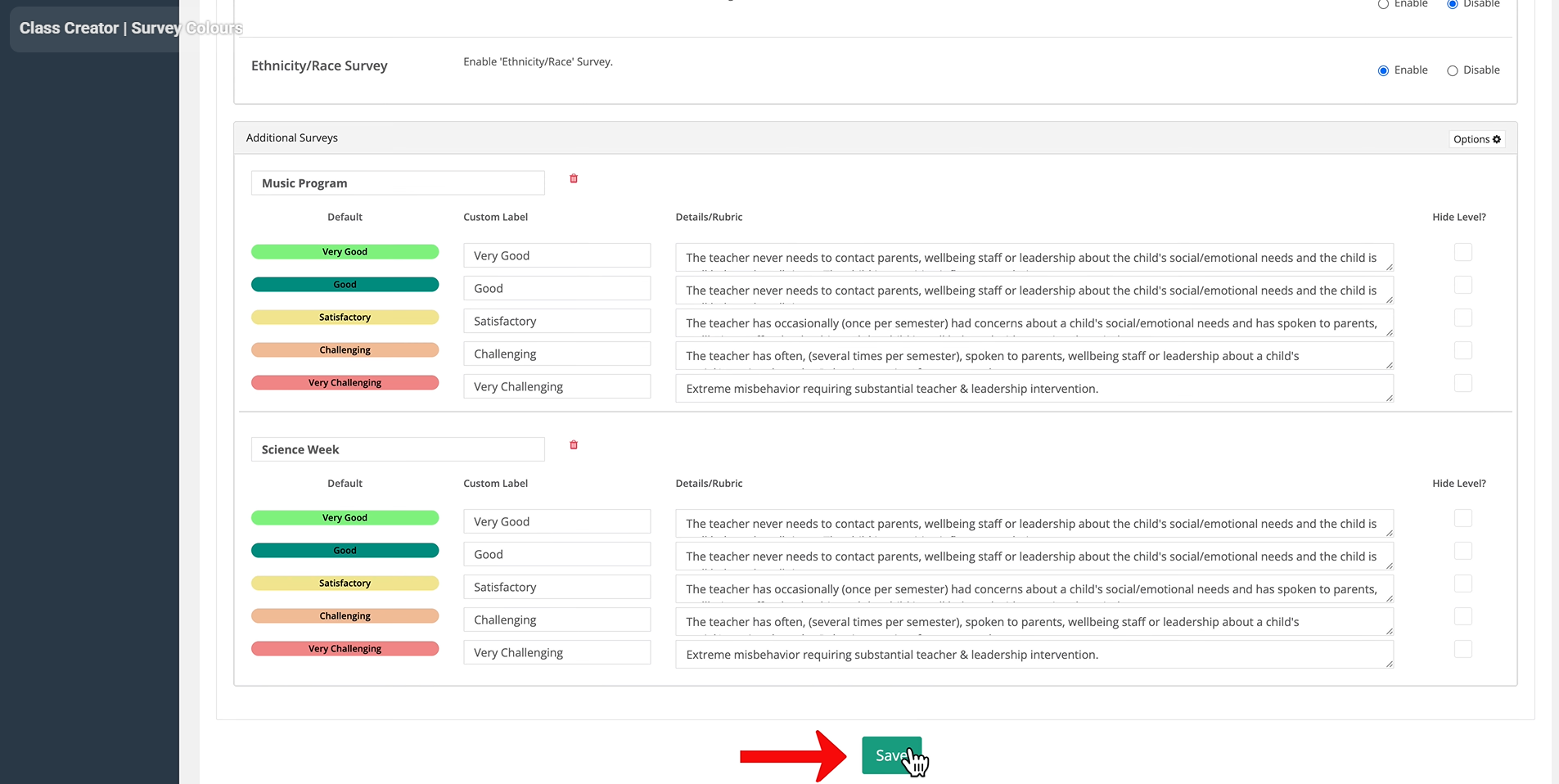
Keep in mind as well that if you change a color for surveys in the academic category, like reading, writing, and mathematics in this example, the colour will change for each survey in the category. Remember to scroll down and click save to save the changes.
Remember, you can use the same process to change the survey colours back to the default setting.
To learn how to use survey colours, watch the video below