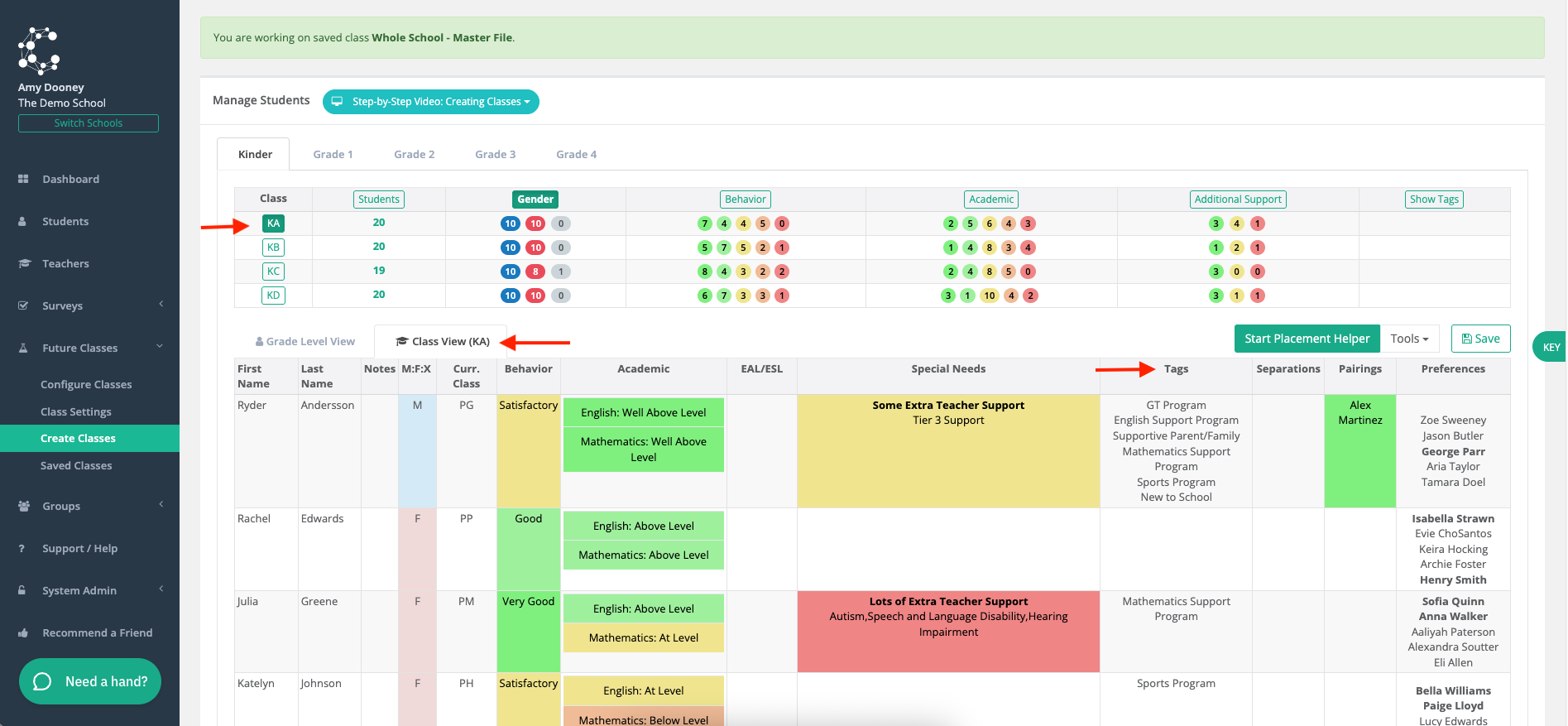

Administrators may wish to review the tags across classes to double check students with certain tags are balanced across classes with the right teachers equipped to teach such students. There are two options to view tags: Grade Level View or Class View
Option 1: GRADE LEVEL VIEW
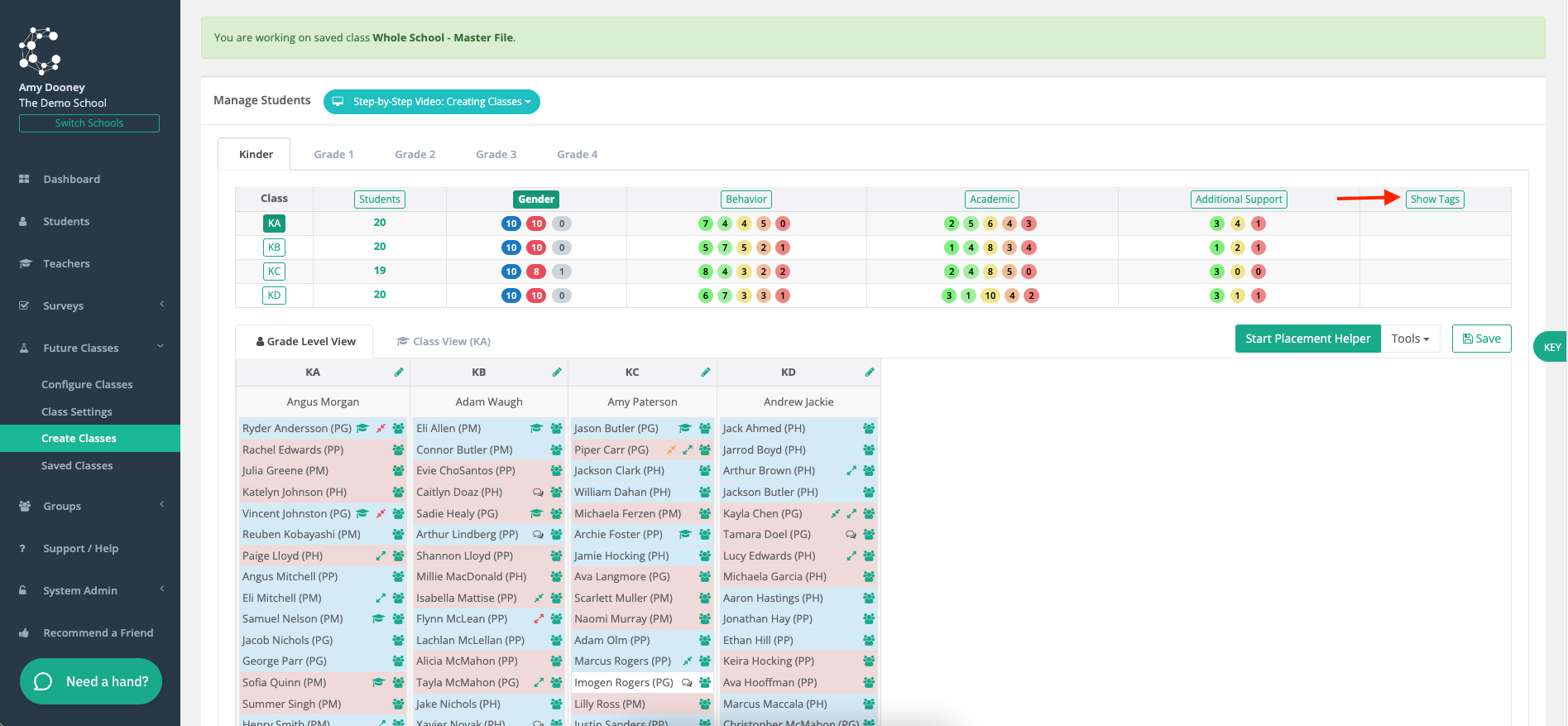
Navigate to SAVED CLASSES > Load the relevant class and the GRADE LEVEL VIEW will open up. In the below example, the arrow shows where to select which tags to show (Show Tags Button).
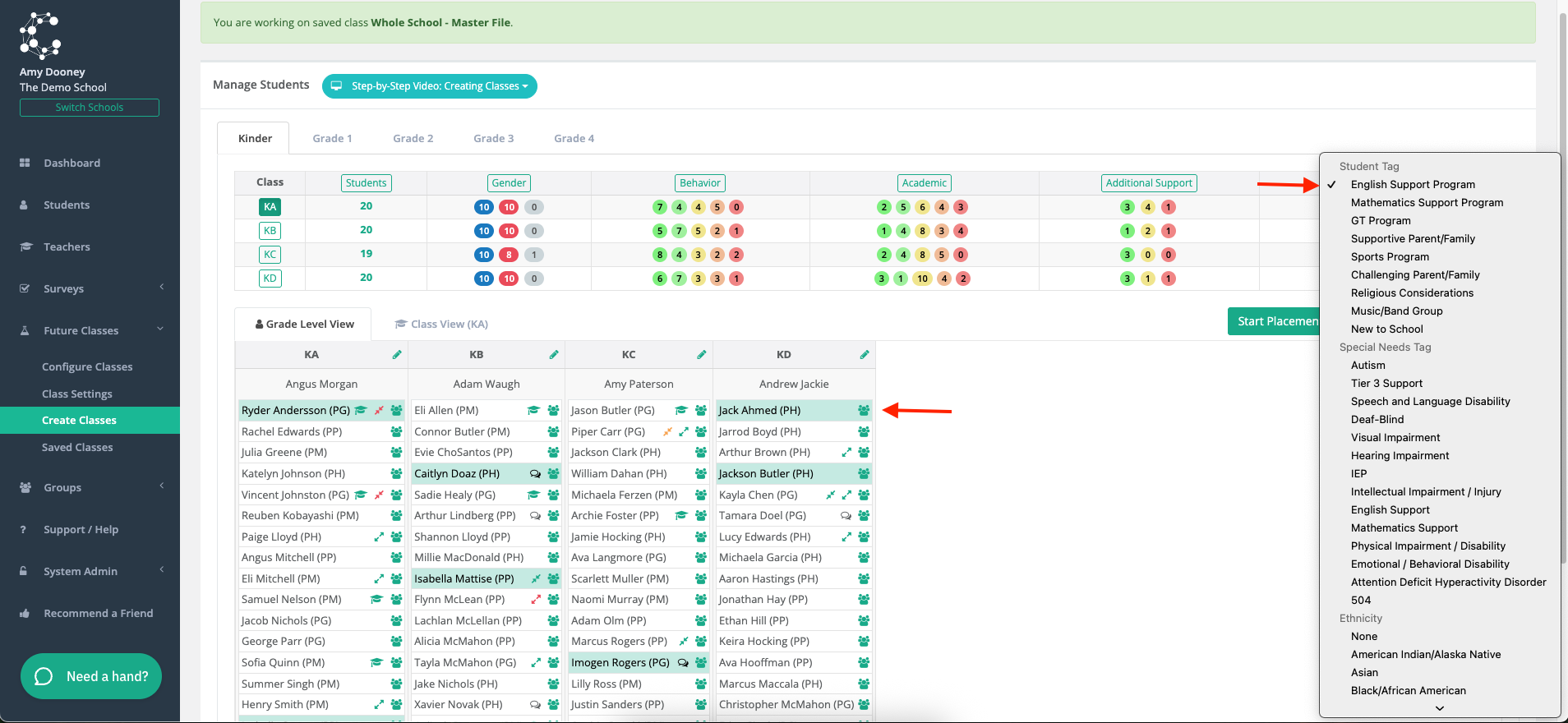
After you have clicked the SHOW TAGS button, please select which tag you would like to view. In the below example, the English Support Program tag has been selected and you can see in the Grade Level View in the middle of the screen, all students who have the English Support Program tag are highlighted in green.
Option 2: CLASS VIEW
In Class View all the tags relating to each student are shown in the Tags column - refer to the red arrows in the example below whereby the KA Class in the Kinder grade level students are being shown. You can move through the grade levels and associated classes as required.