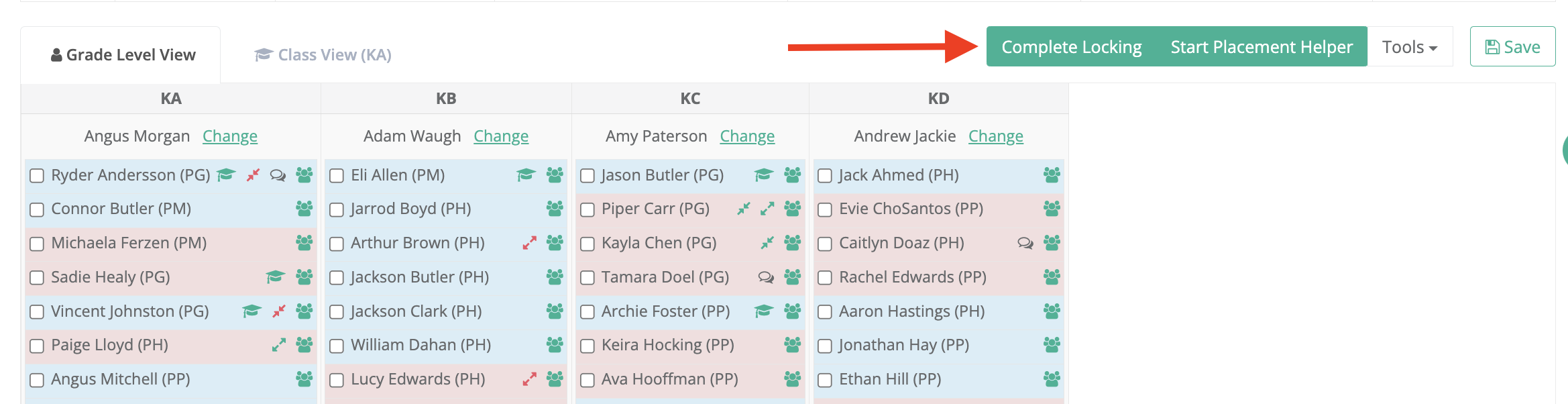

The Lock Students feature will allow you to lock single or multiple students to their assigned classes as you work through your class placement, giving you piece of mind, knowing they won't accidentally be moved again as you shuffle students around.
*Please note, the locking feature is not to be used when using the re-sorting tool (*This is currently a feature request in the development queue).
Watch the video guide below to see how locking students will help with manual movements, using placement helper and resorting with different algorithms.
Two Minute Video Guide
Step-by-Step Guide
Step 1: Make sure you're working in a Saved Class.
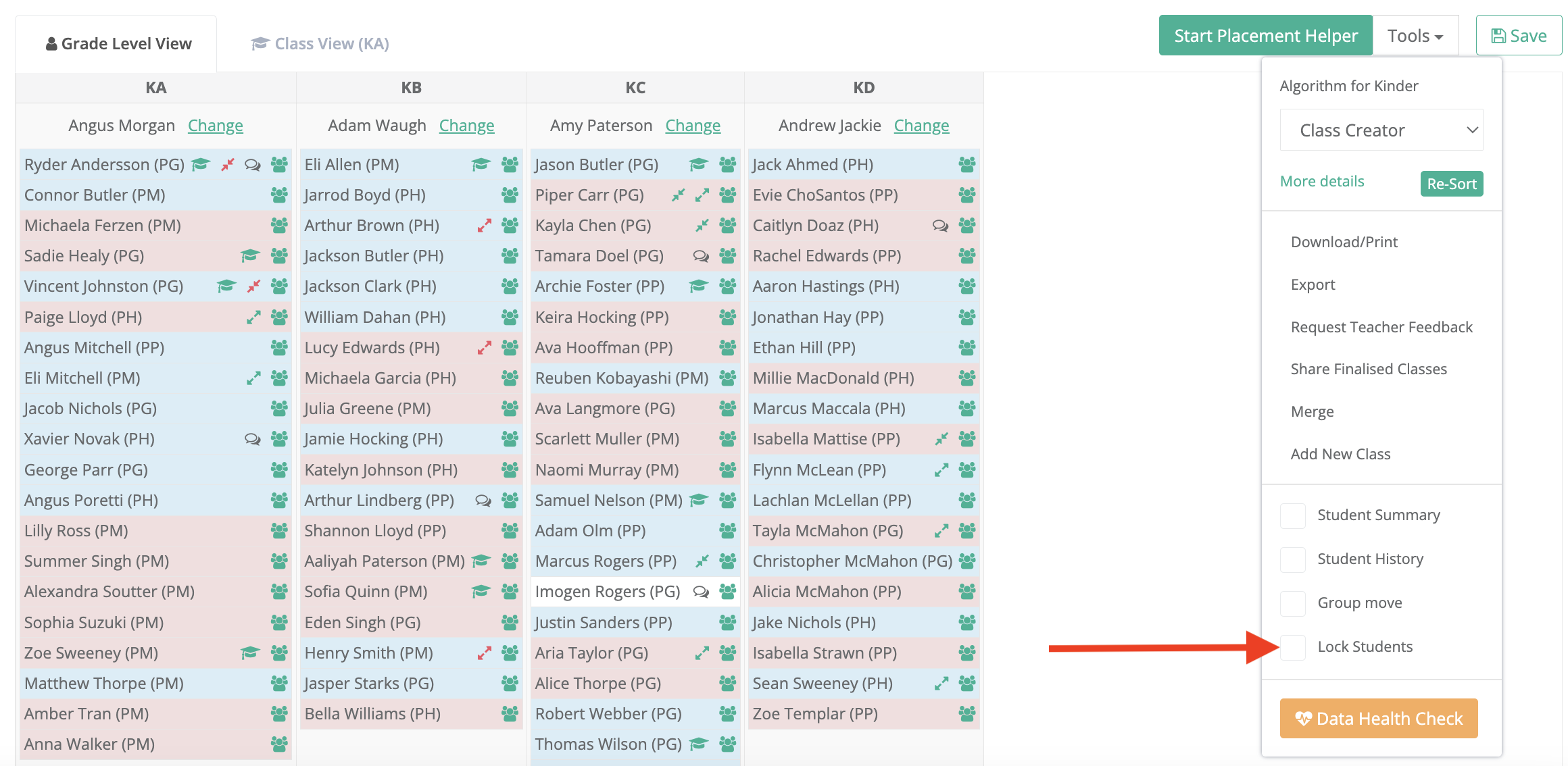
Step 2: Click 'Tools' then select the 'Lock Students' button.
Step 3: Select the tick boxes for the students you would like to lock.
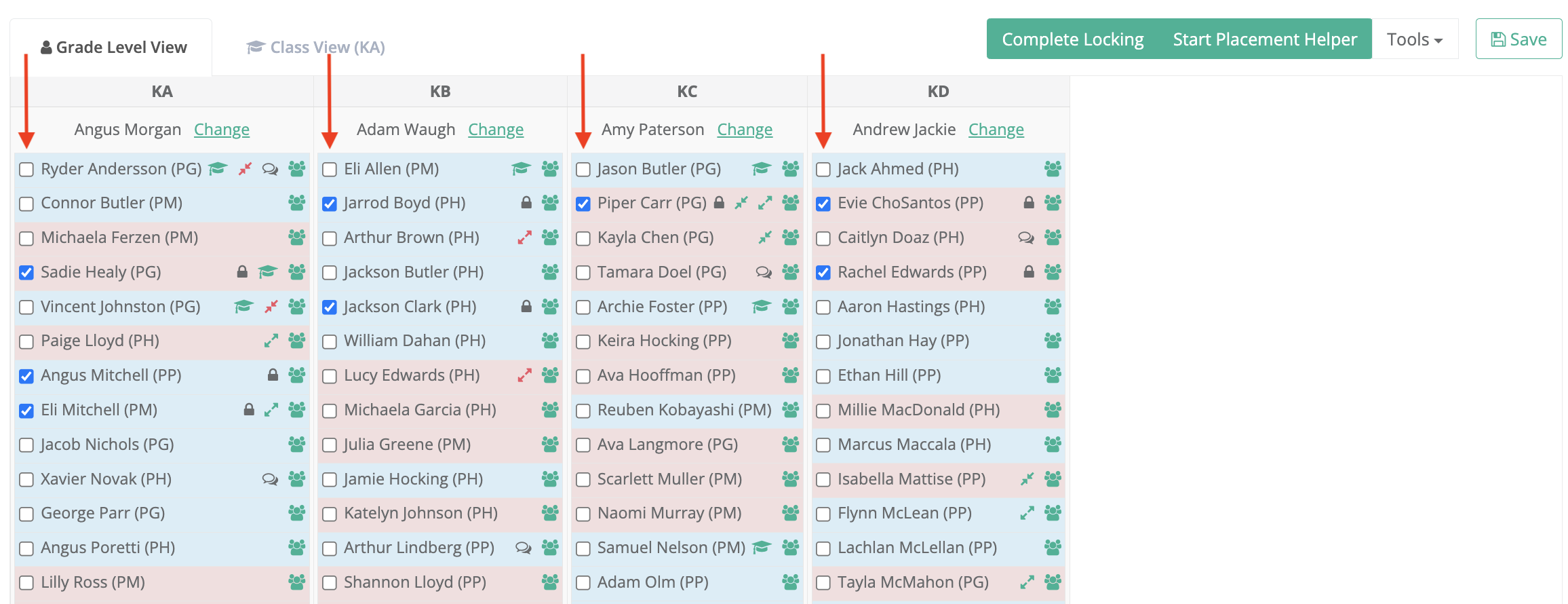
Step 4: Click 'Complete Locking' and Save to confirm locking.
Please note: A Locked Student can be unlocked by repeating steps 2 & 3 and unticking the box.