
You can find a KEY on the right hand side of the Class Crator page.
Simply click on it to to see definitons of the symbols and icon color-coding.
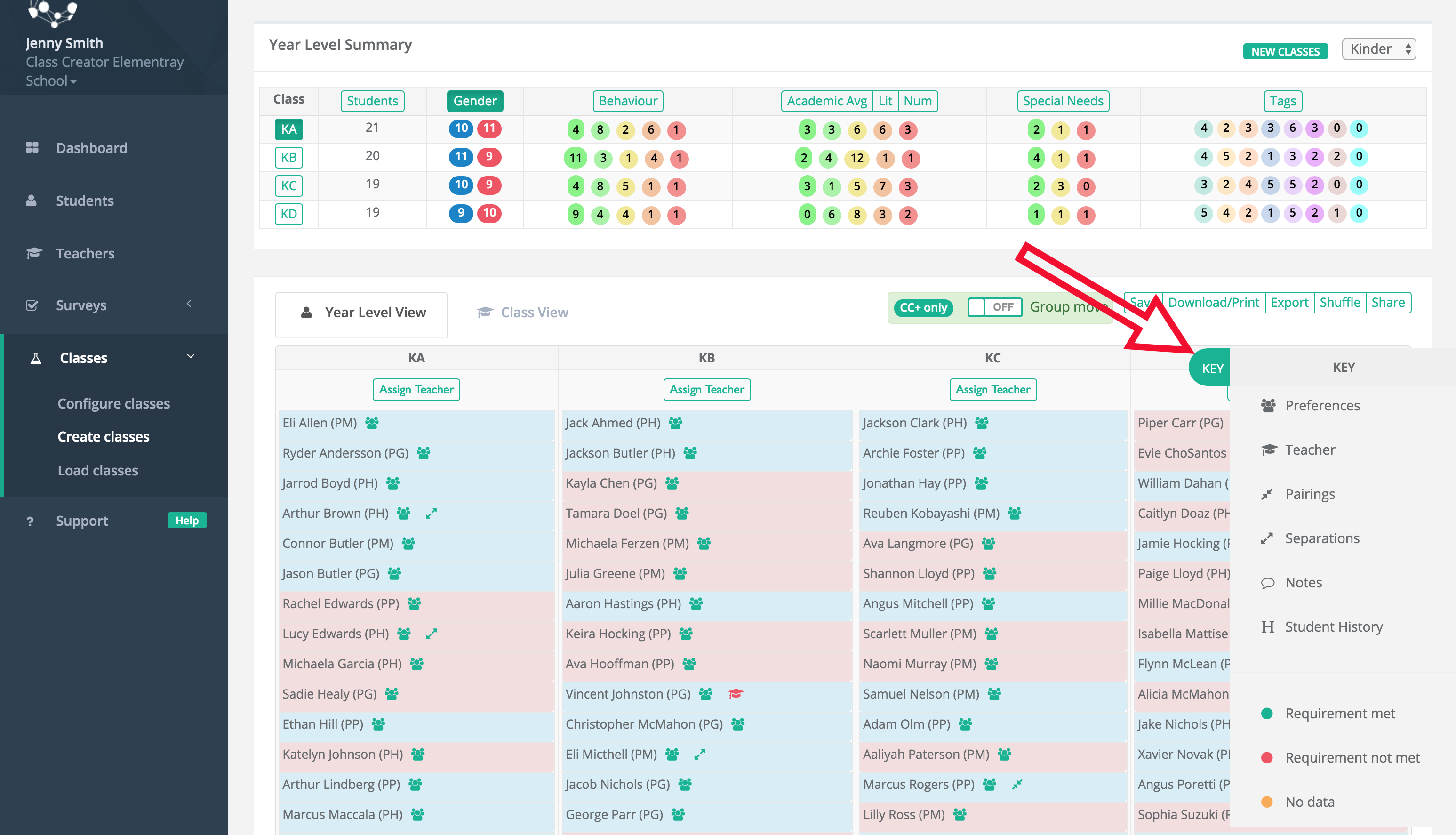
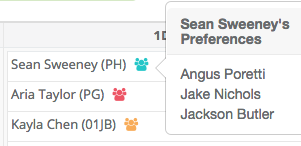
People = Preferences.
Blue/Green: Student has 1+ Preference meet
Red: Student has no preferences met.
Orange: Student does not have any prefences entered in their survey.
You can click on the person icon next to student to see their preferences and which on has been meet (The student appears Bold).
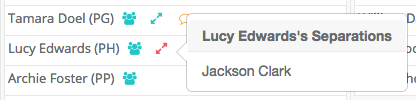
Arrows Apart = Separations
Green: Students are in different classes. Separation met.
Red: Students are in the same class. Separation not met.
Click on the icon to see more information.
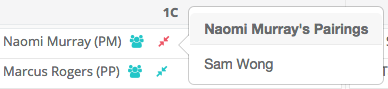
Arrows Together = Pairings
Green: Students are in the same class. Pairing met.
Red: Students are not in the same class. Pairing not met.
Click on the icon to see more information.
Speech Bubble = Admin Notes
Click on the speech bubble to see relevent Notes assigned to that student.

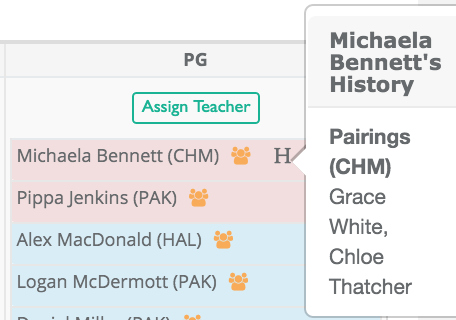
H = History
Click on the H to see all historical Separations and Pairings related to the student.