
Docs

How can we help you?

Welcome to the Class Creator help page. If you can't find the answer you're after please contact us.

Team Leader Overview + Assigning "Team Leader" Access

Teachers

Team Leader Overview + Assigning "Team Leader" Access

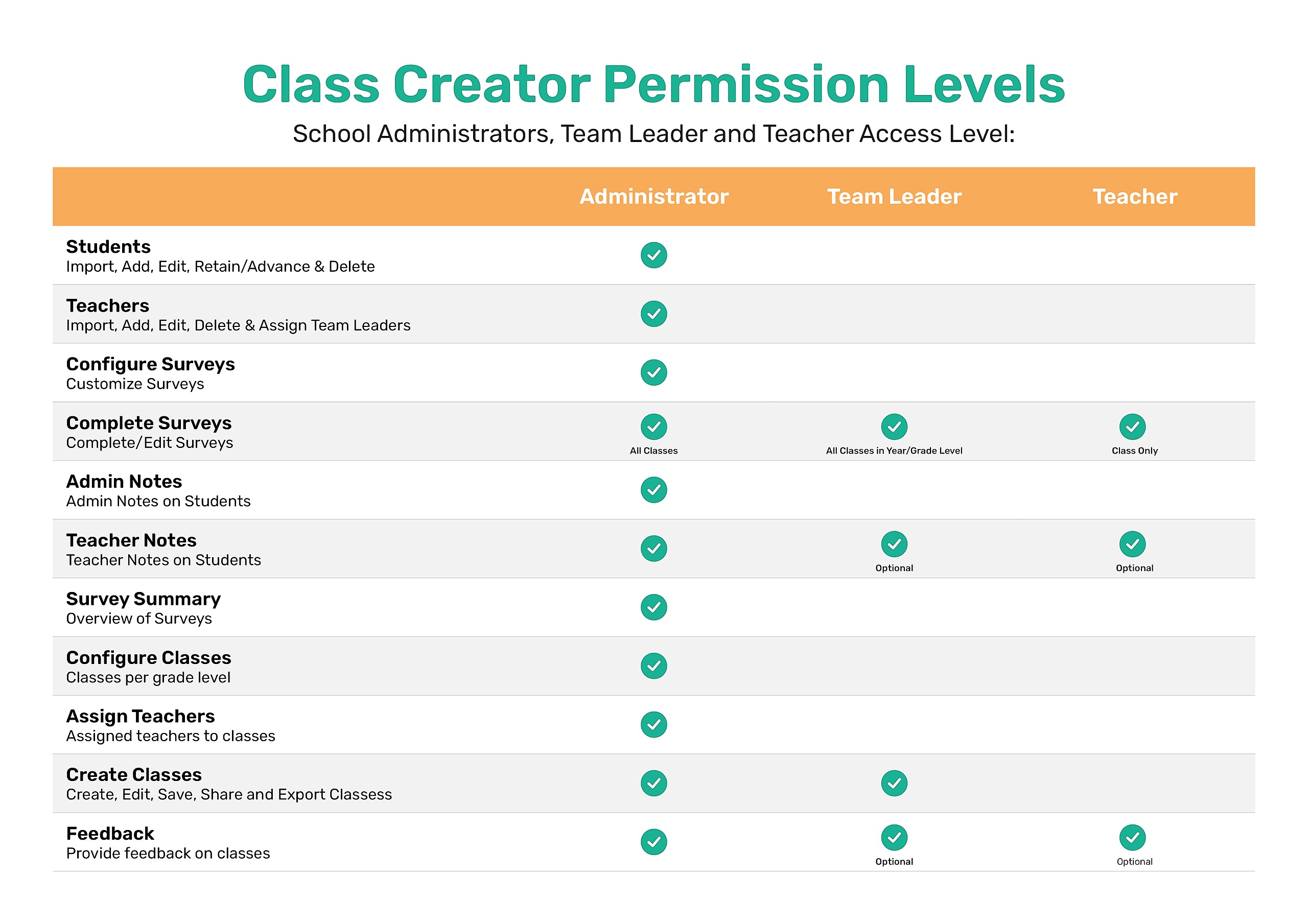
To simplify Team Leader access, the access level between Administrators and Teachers, you can now configure Team Lead access to create classes/ view saved classes for only their assigned year level/s or the whole school.

Last updated on 19 Jun, 2025


How to assign a Team Leader:


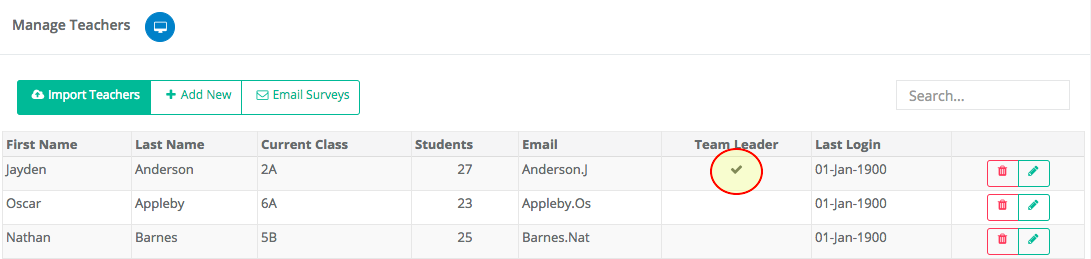
  1. On the Teachers page select "Edit" for the teacher, you wish to make a Team Leader.
     

  2. Their details will appear in the pop-up window. 
     

  3. Click the "Team Leader" box.
     

  4. Click "Save Teacher".
     

  5. The teacher should appear in the main list again with a tick in the Team Leader column.
Image

Team Leaders will not have access to:

  • Manage Students

  • Manage Teachers

  • Configure Classes

  • Survey Summary

  • Viewing Teacher - Student Separations and Pairings

  • Admin Notes (These are accessible by school admins only)
Image
Was this page helpful?
Previous

How do you assign a teacher to a new class?

Next