

Sociograph View
If using friendship preferences, you can also use the sociograph view.
To access the Sociograph View, navigate to Surveys > Survey Summary > Sociograph View (Shown in the screenshot below):
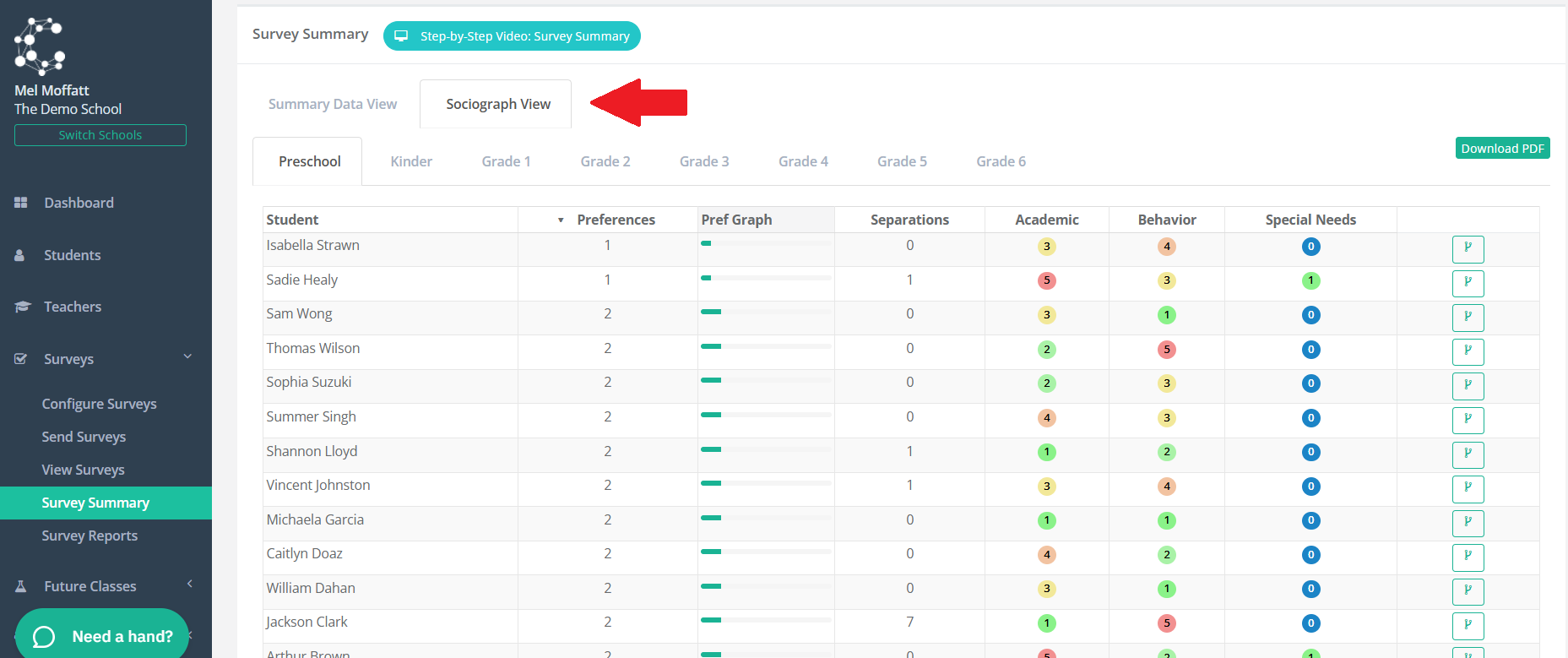
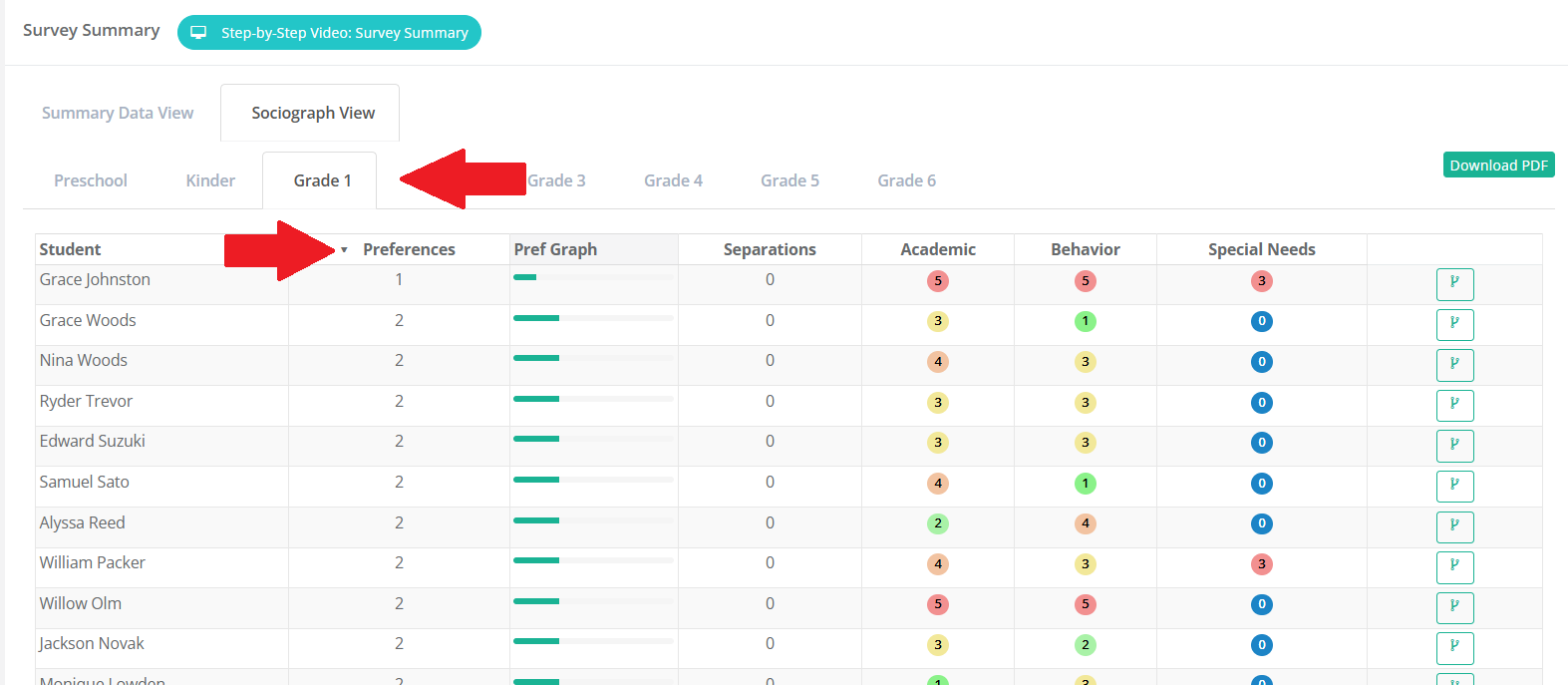
Click on the grade you would like to view and then click on the different options to highlight outliers. First example is by clicking on preferences, shows student Grace Johnston only has 1 preference that identified her as a friend.
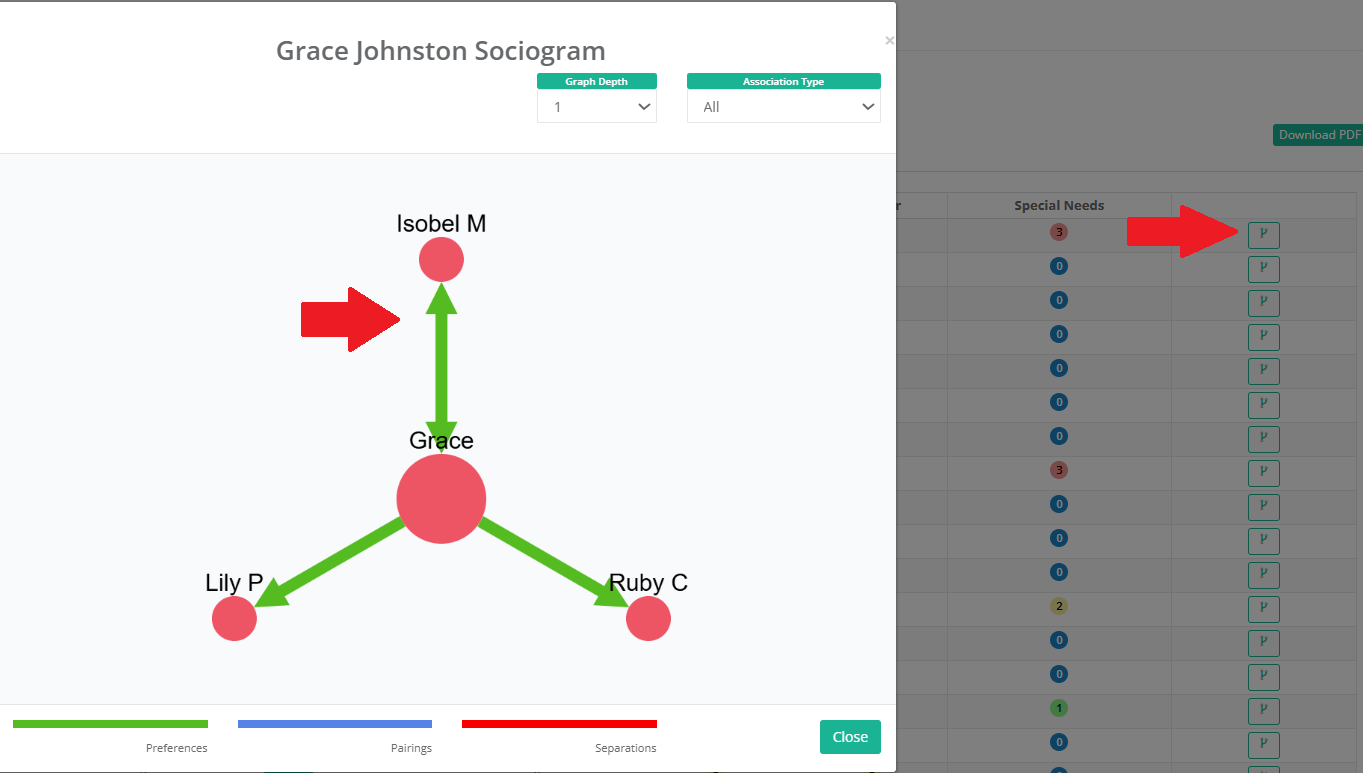
Administrators can click on the sociogram icon on the far right for a graphical view of preferences, separations and pairings. e.g. The below sociogram shows that Isobel M has identified Grace J as a friendship preference too.
Note this does not need to be a pairing as remember, preferences are a 'nice-to-have', whereas separations and pairings are a 'must-be-met' ruling for the Class Creator algorithm.
Students with only 1 preference may be feeling socially isolated at school and may require some extra support with social interactions in school.
The sociograph information for each class can also be downloaded by clicking on the "Download PDF" button on the top right of the Survey Summary screen. This information can be very useful for teachers of a new class to gain an understanding of students who may be at risk of social isolation.
