

If you have created a class and you would like some students to stay where they are but you would like to re-sort the rest you can lock the students (or entire class) then click resort.
Step 1 – Create a New Class or open a saved class
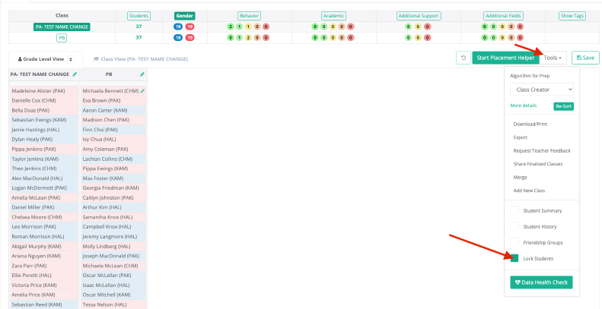
Step 2 – Click on >Tools >tick the ‘Lock Students’ box
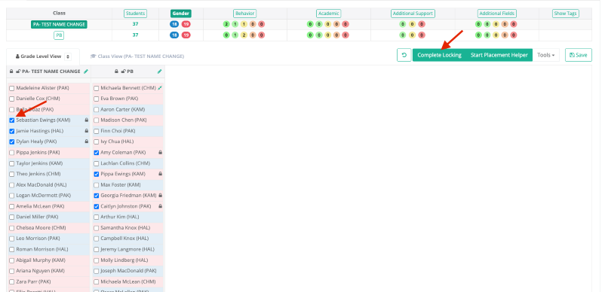
Step 3 – Tick the box of the students that you would like to stay in the class they have been assigned.
Step 4 – Select ‘Complete Locking’
Step 5 – Select either ‘Start Placement Helper’ or > Tools > Resort
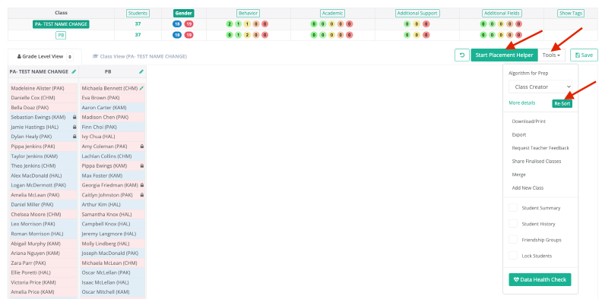
This will then move the unlocked students around the classes
Please note that by locking the students and then selecting the ‘resort’ option you are choosing to ignore their survey data, if the survey data is important for your allocation of other students please select ‘Placement Helper’.