

If you have a new student join your school and you wish to add them to your Class Creator database.
Click Students on the left-hand side navigation menu
Click + Add New

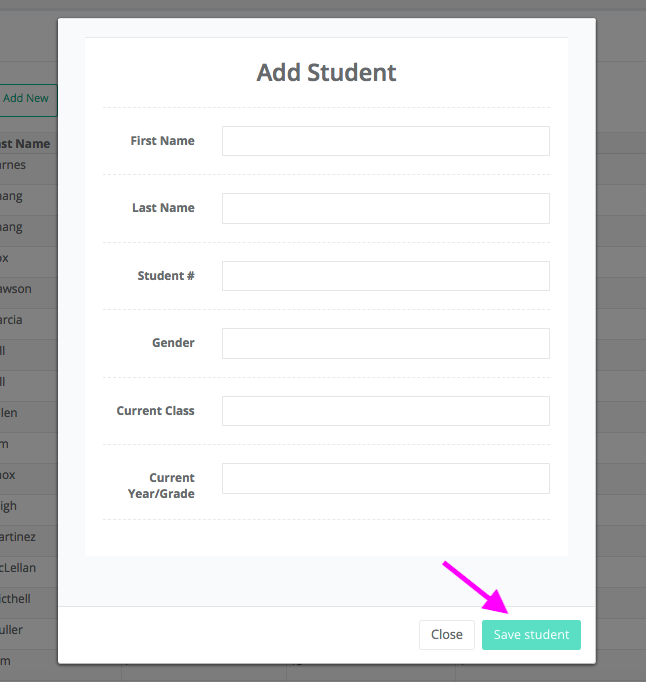
Enter the new student’s details in the pop up box and click save student.
Recommendations:
When adding a new student make sure you enter their Current Year Level (this academic year) correctly.
If a student is not assigned to a class (if they have arrived over the summer), then you can list their current class as “NEW”. You will need to complete their survey information as best you can with any information you have access to.
If you add a new student and classes have not been created yet, the new student will automatically be placed in a class when they are created.
If you add a new student after classes have already been created, the new student will appear in an “Unplaced students” panel when you load the Saved class (image below). Simply drag the new student into the desired class.
To learn how to add a new student to a saved class - refer to this article.
