
In this video we show school administrators how to view all survey data completed by the teaching staff.
It's important to remember admins have access to all survey data - notes, separations & pairings included.
Teachers can only see the data related to their own class.
Team Leaders can see data only related to the year level they are assigned to.
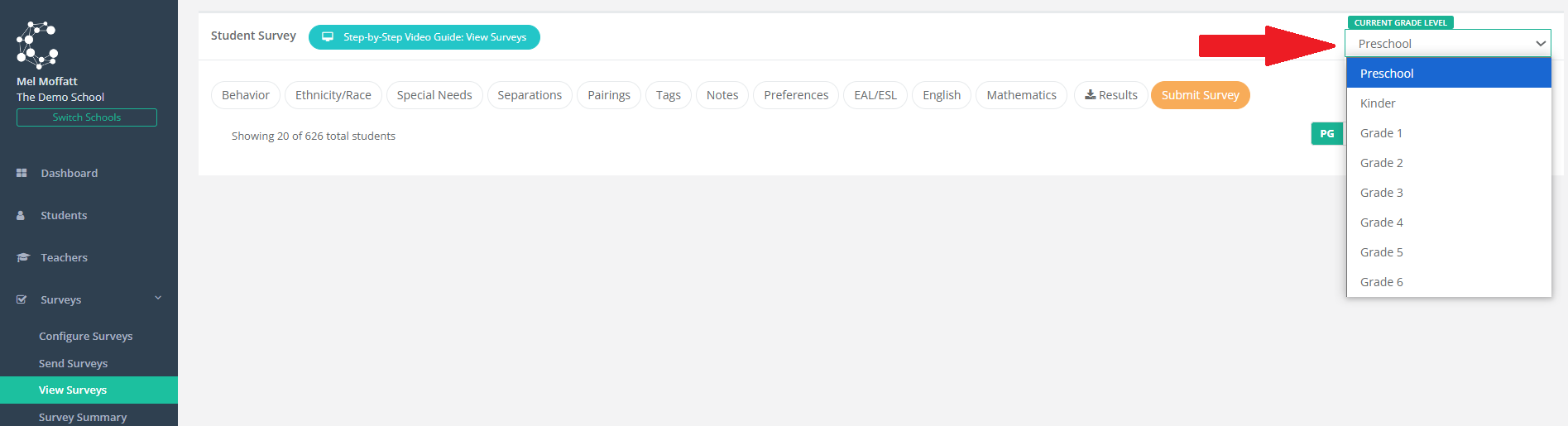
Navigate to Surveys > View Surveys. Administrators can access all the year levels using the drop down on the far right:
Access the different classes via the buttons at the bottom right of the page as indicated below:
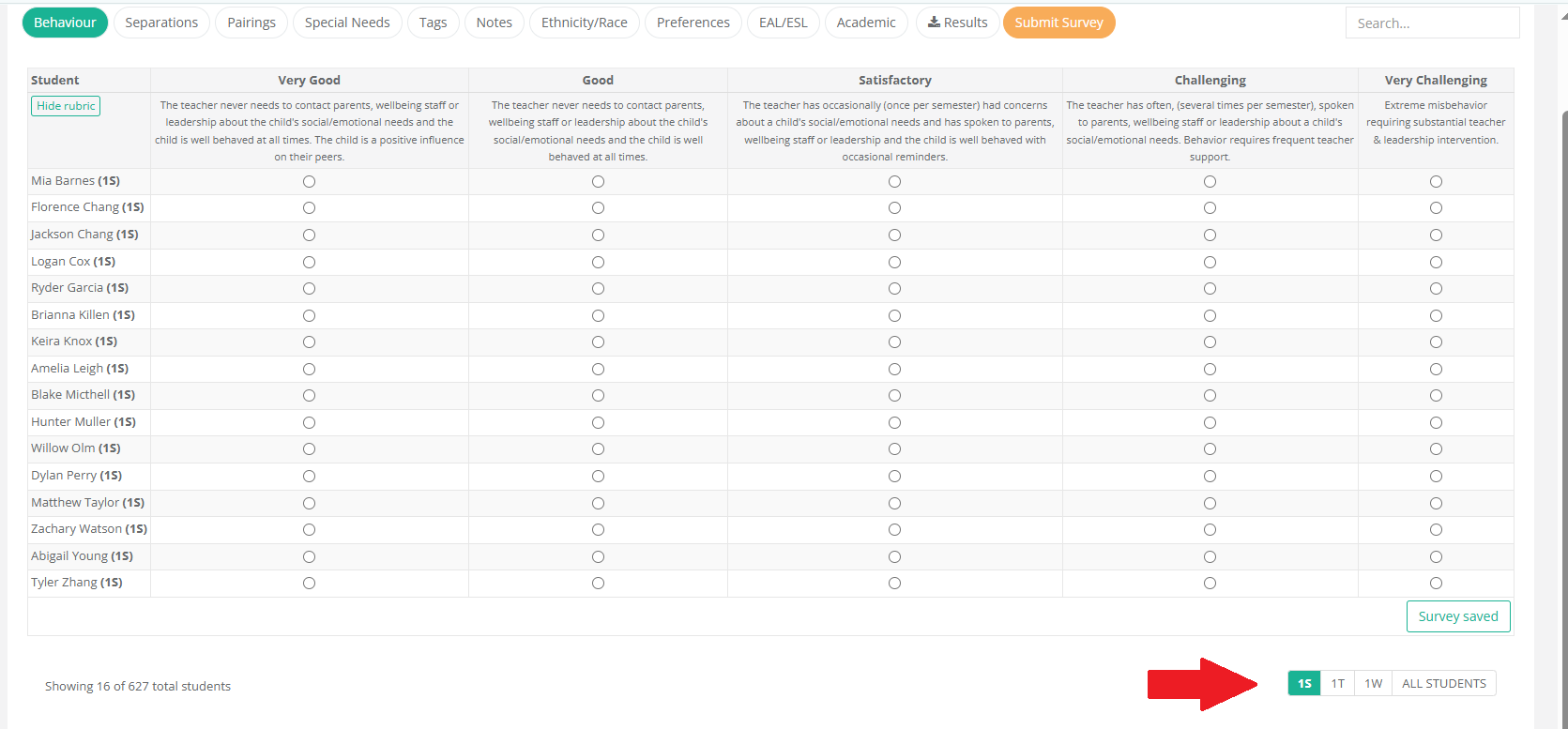
It's important to note, administrators can submit surveys on behalf of teachers from this View Surveys page or the Survey Summary page:
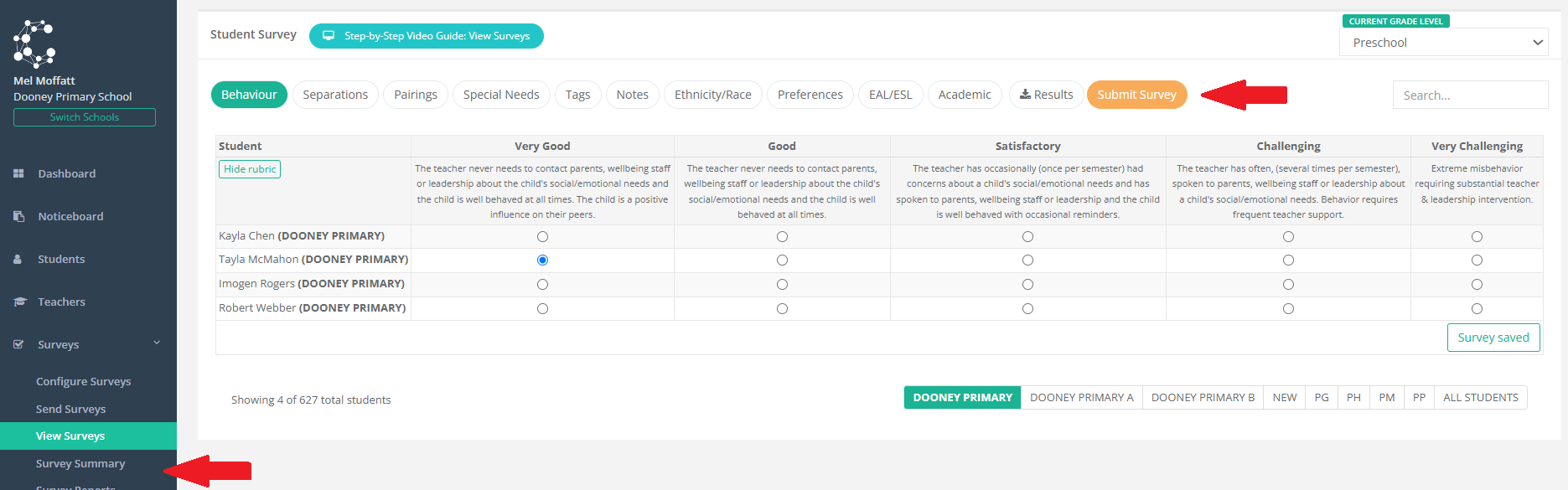
To complete the surveys for each student, teachers will move through the surveys as configured by administrators in the Configure Surveys step. In this example, teachers are to fill in responses for each student based on Behavior, Separations, Pairings, Special Needs, Tags, Notes, Ethnicity/Race, Preferences, EAL/ESL and Academic surveys. Administrators are encouraged to move through these surveys to ensure the data has been entered correctly.
Special Needs
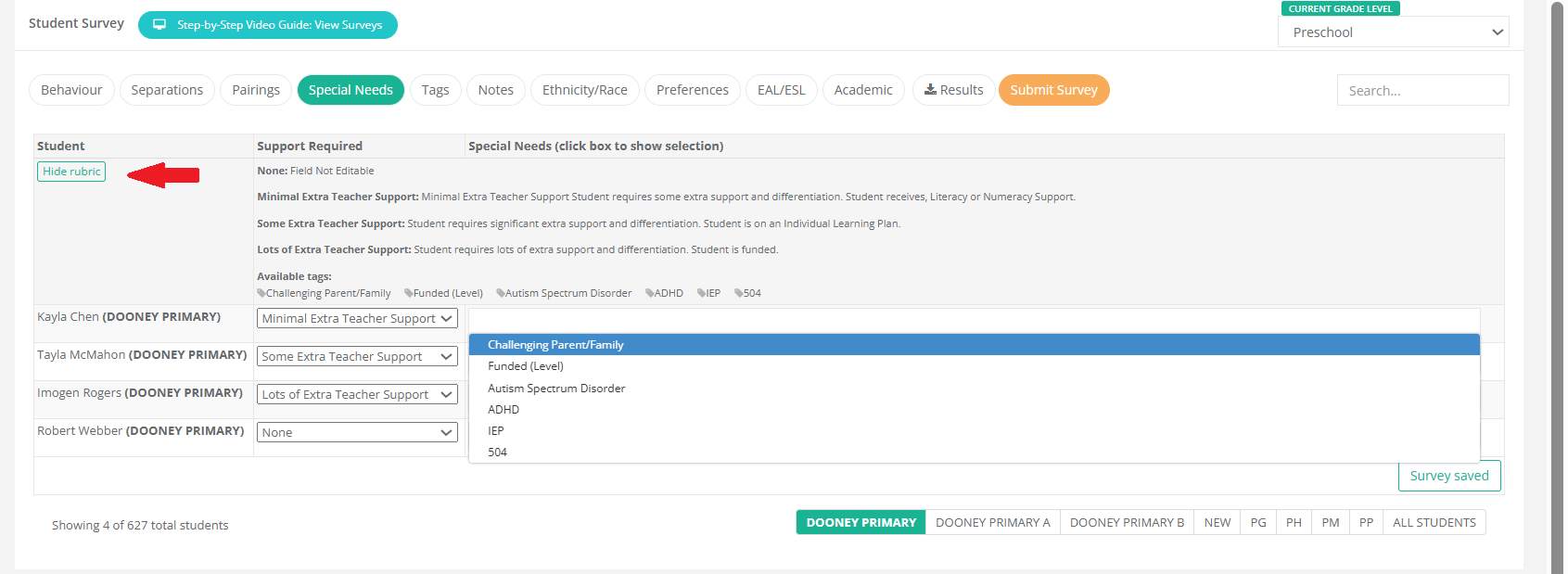
Note the Special Needs Surveys look a little different. Levels of support are selected from the Support Required drop down and Special Needs are selected by choosing the relevant Tags.
You can hide the rubric if you prefer not to have this visible by clicking on the button shown in the graphic below next to the red arrow.
Separations and Pairings
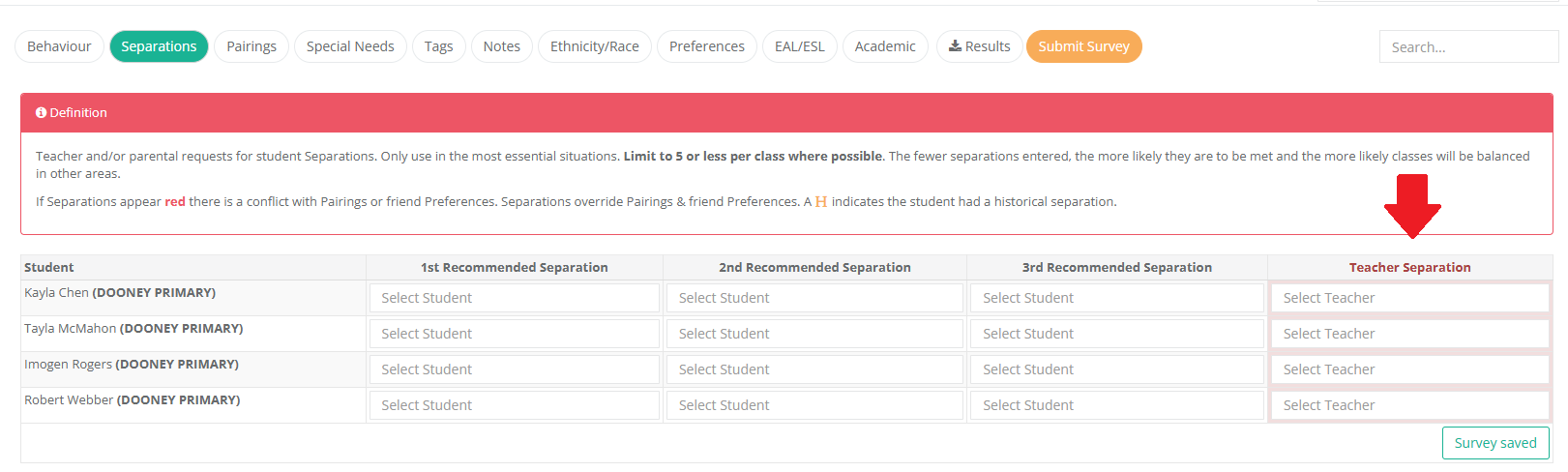
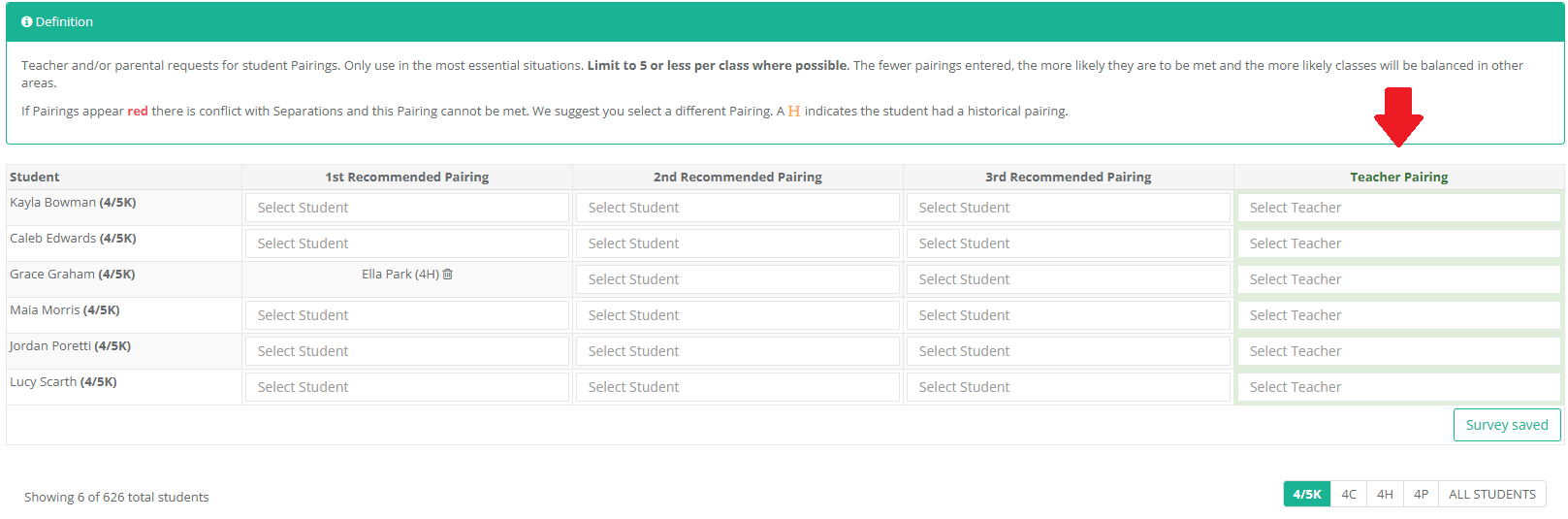
Creating balanced classes becomes difficult if too many separations and pairings have been nominated. It is therefore only recommended to nominate essential separations and pairings, with no more than 5 per class.
Teacher Pairings and Teacher Separations are only visible to Administrators as this information may be sensitive.
Friendship Preferences
If your school is using friendship preferences, remember that entering more preferences will make it easier for Class Creator to allocate at least one of those preferences and create balanced classes.
It is possible to upload friendship preferences via Import Friendship Preferences Tool. Click on the Preferences tab and then the Import Friendship Preferences button:

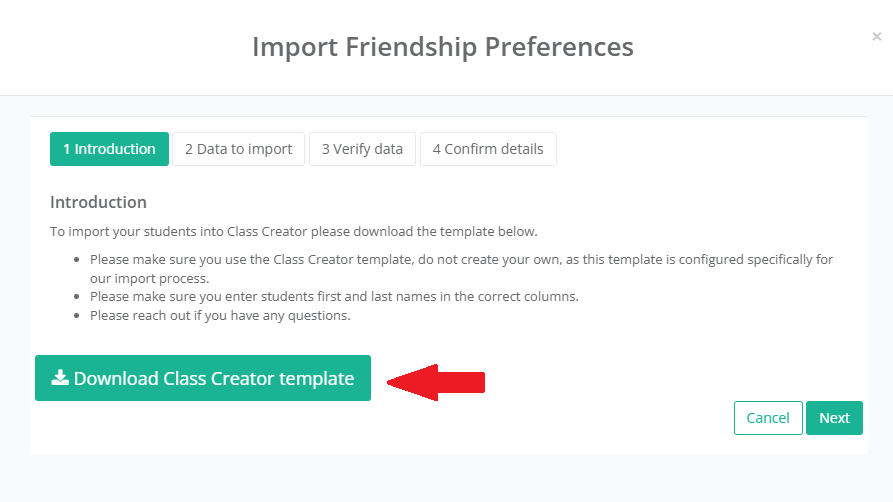
The Import Friendship Preferences pop-up will appear where you can download the Class Creator Friendship Preferences Template, fill in the details and import the data straight into Class Creator:
Similarly, you can also Export Friendship Preferences once they have been created:

Remember as a general rule, minimize separations and pairing requests and maximize friendship preferences to create well-balanced classes.
Tags
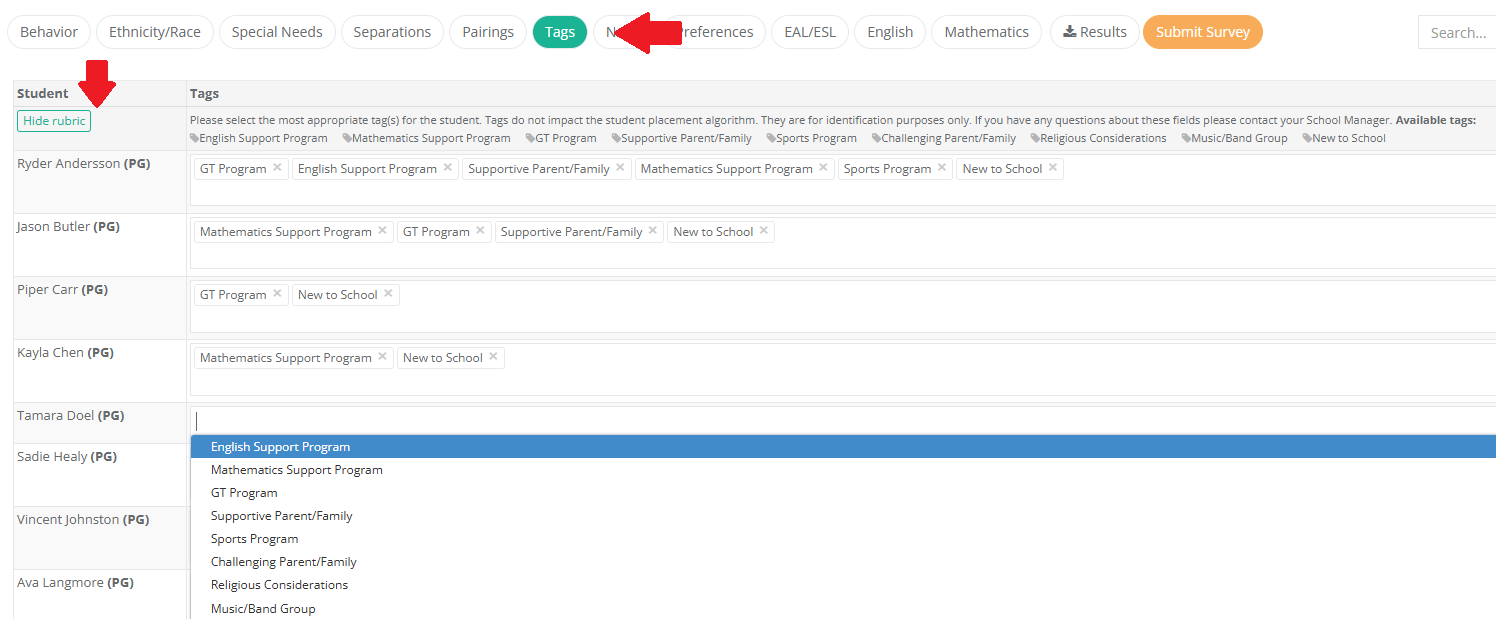
Tags enable you to identify students for a specific reason.
Administrators can add or delete tags here as necessary, with the Show/Hide rubric button showing which tags have been specified for your school:
Notes - Teacher and Admin Notes
Administrators have access to both Teacher and Administrator Notes
Only Administrators have access to Admin Notes i.e. Teachers and Team Leaders only have access to Teacher Notes, but not Admin Notes.
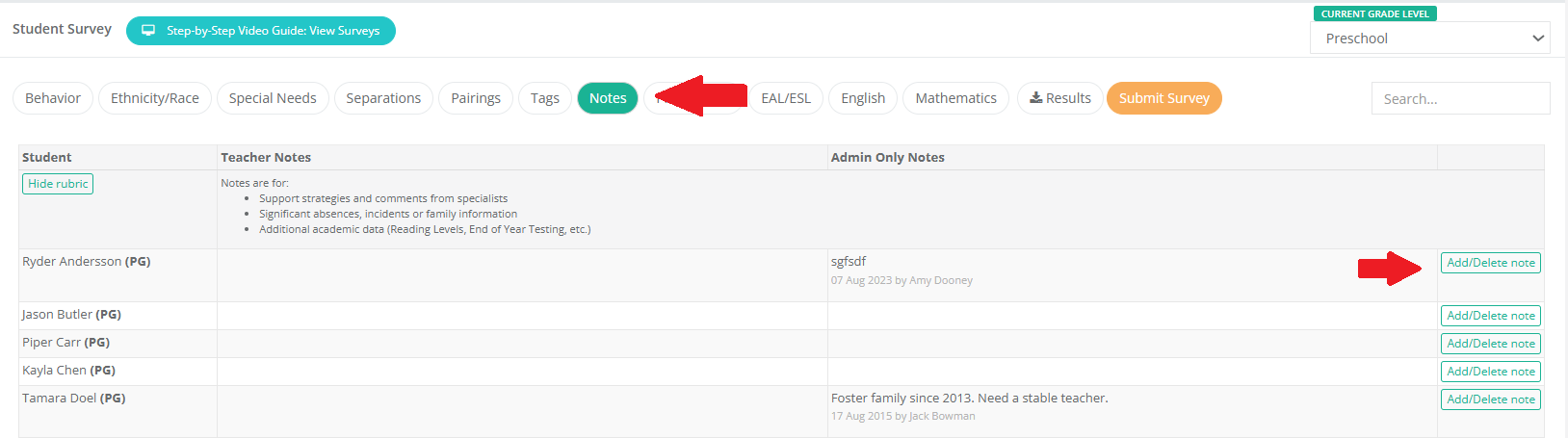
To add or delete notes, click on the "Add/Delete note" button on the far right of the screen as shown below:
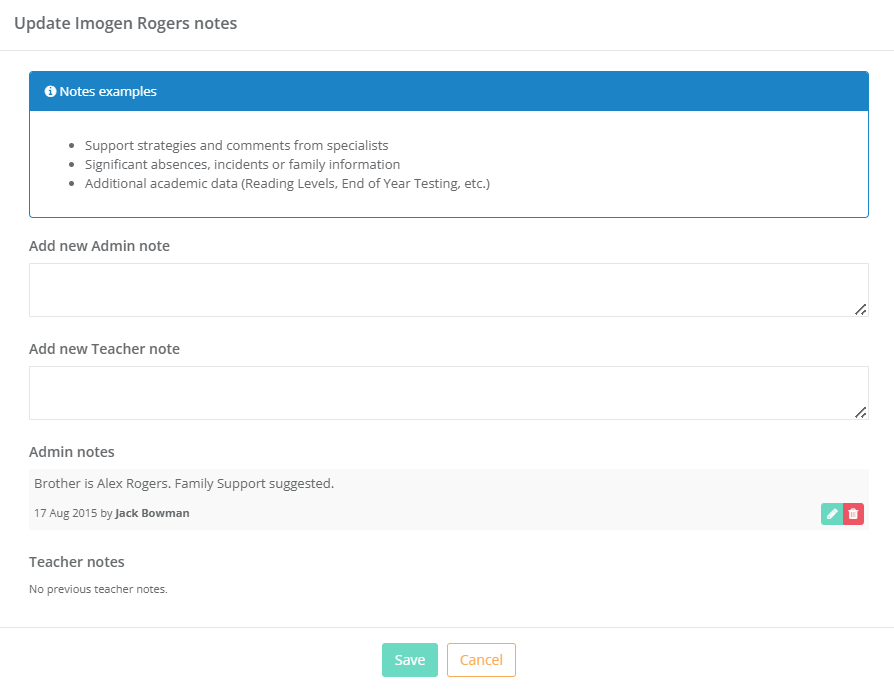
To edit notes, a pop-up will appear after clicking on the "Add/Delete note" button. Enter notes and then click the Save button:
Results Tab:
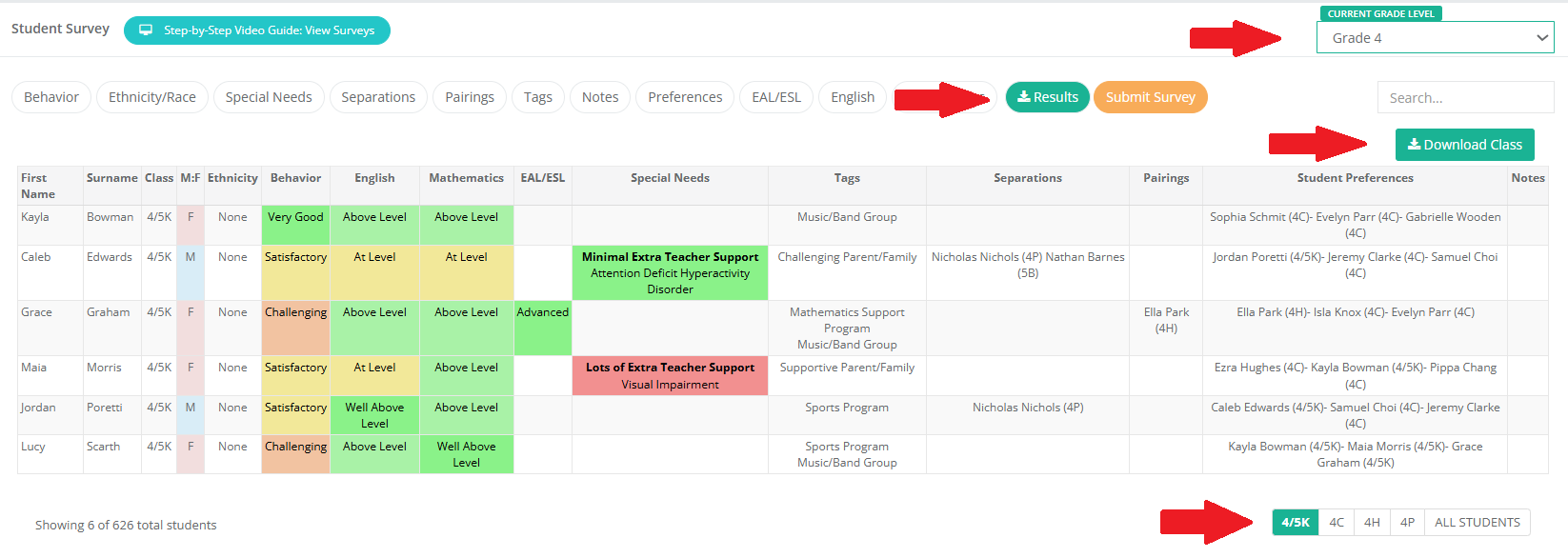
The results tab gives an overview of the data collected. Remember to work through the grade levels by selecting which level you would like to view from the drop down box at the top right of your screen and then the classes from the options at the bottom right of the screen as indicated below. You can export the results view for classes by clicking on the Download Class button: