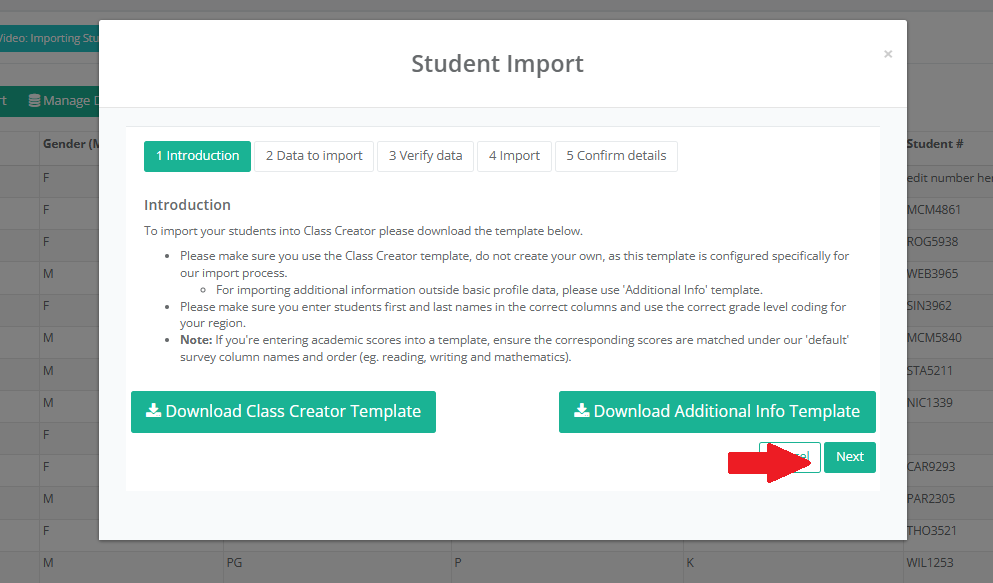

If you wish to import additional information with your students please follow the step below.
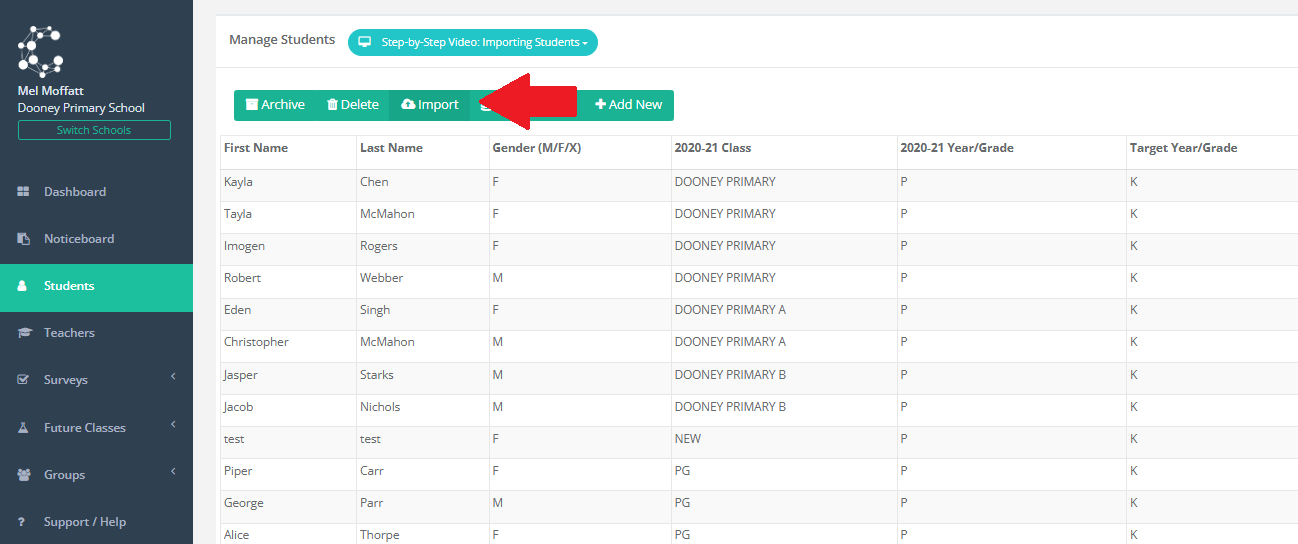
Navigate to Students > Import Tab
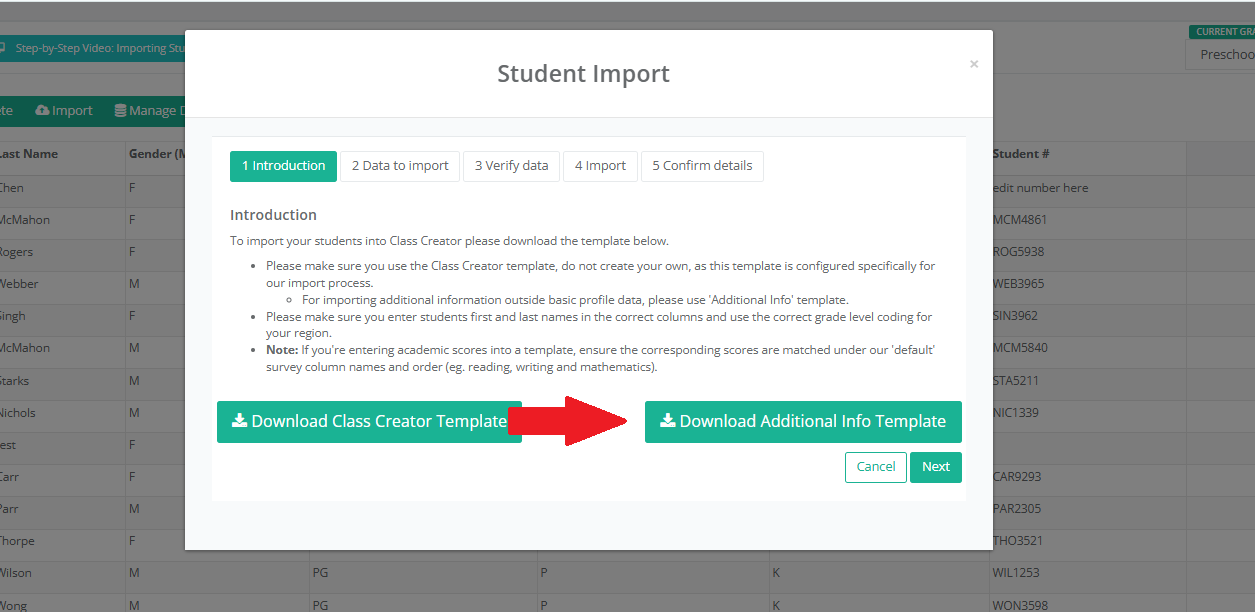
Click on Download Additional Info Template:
Open the downloaded additional template from your download folder on your computer:
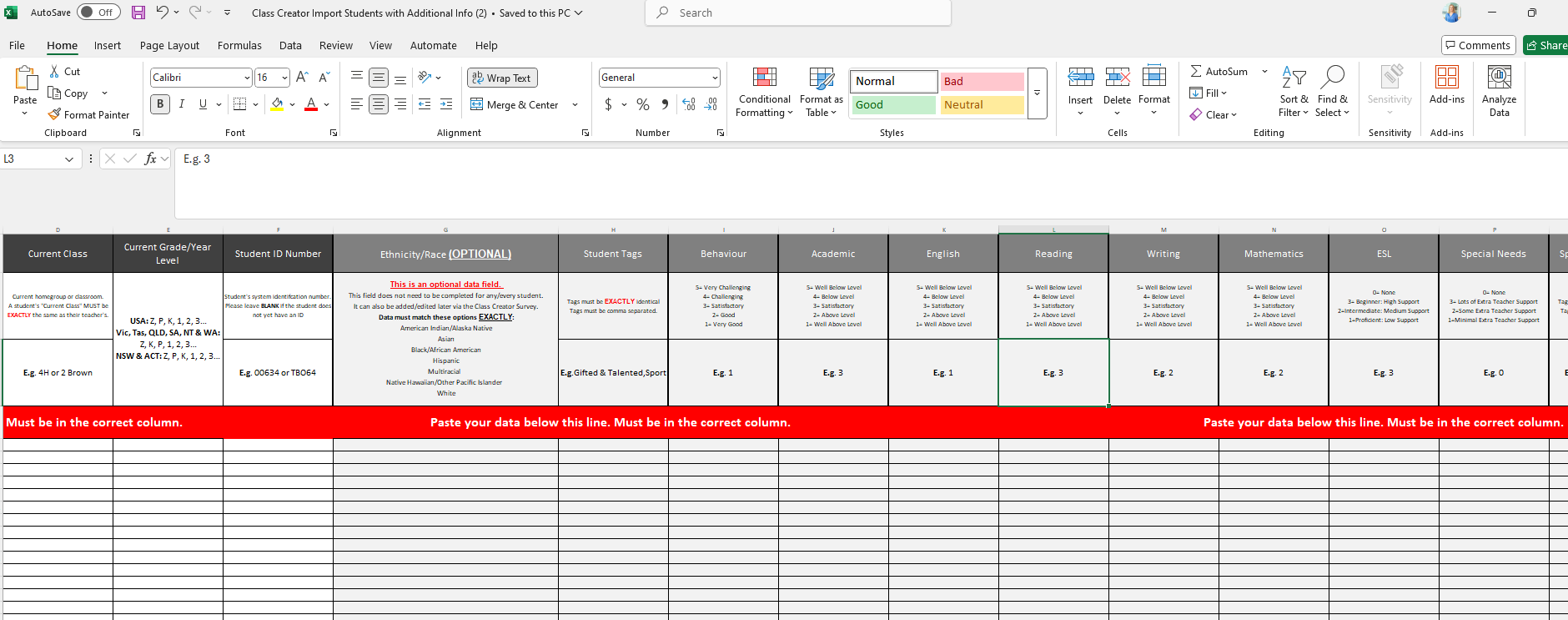
Follow the instructions;
Please make sure you use the Class Creator template, do not create your own, as this template is configured specifically for our import process.
For importing additional information outside basic profile data, please use 'Additional Info' template.
Please make sure you enter students first and last names in the correct columns and use the correct grade level coding for your region.
Note: If you're entering academic scores into a template, ensure the corresponding scores are matched under our 'default' survey column names and order (eg. reading, writing and mathematics).
Complete the spreadsheet. Please take care to ensure the formatting is correct or it will not import. Please reach out if you have any questions, we're here to help.
Once your template is completed, save it and then click the next button in Class Creator to follow the steps to import the file: