

On the Configure Classes page, you are also able to enter composite/multi-age classes.
Class Creator will attempt to balance the classes according to your student numbers and give you an approximate number of student per class and the composition.
If you wish to change the composition of students you can easily edit the classes user our Drag & Drop feature.
Please note, split-classes do not span more than 2 adjacent grade levels.
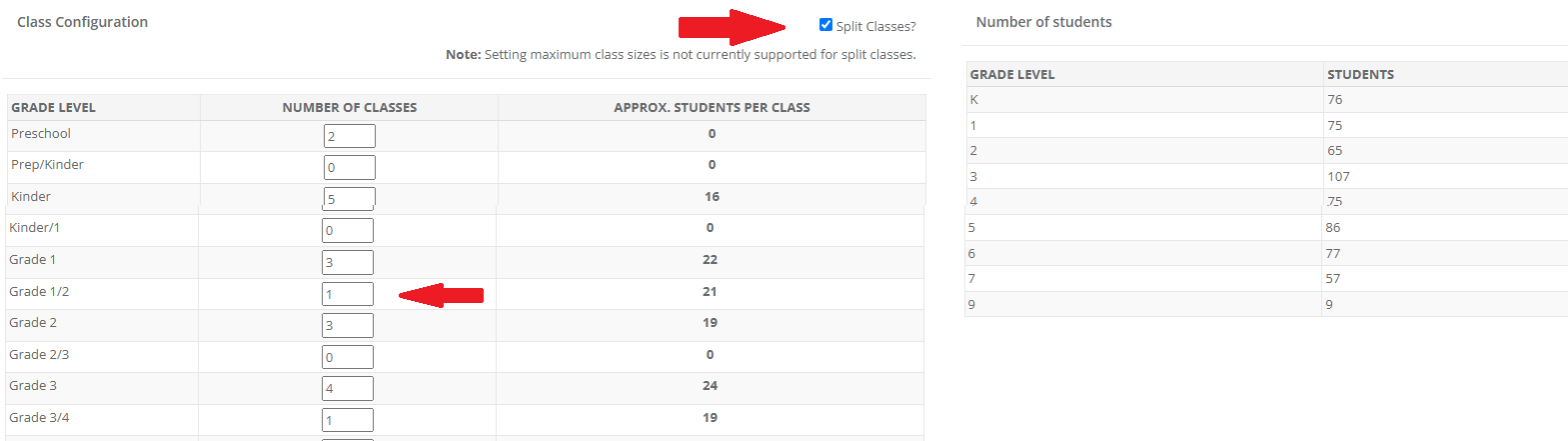
To navigate to Split Classes, click on Future Classes>Configure Classes>Number of Classes Tab:
Click the tick box next to Split Classes as shown in the screenshot below.
In the Number of Classes column you will see single year levels and composite year levels. Adjust the numbers according to your school's requirements.
Note, you are able to have both single and composite in your year level configurations.
Once your composite classes are configured, the final optional step before you are ready to create your next year's classes, is to setup your class settings. Refer to this article for more information.