

Class Settings
Under the Class Settings tab teachers can be assigned and rules can be set up based on student tags.
Navigate to Future Classes > Class Settings (or click on the Class Settings Tab in the Configure Classes Tab next to the Number of Classes tab heading).
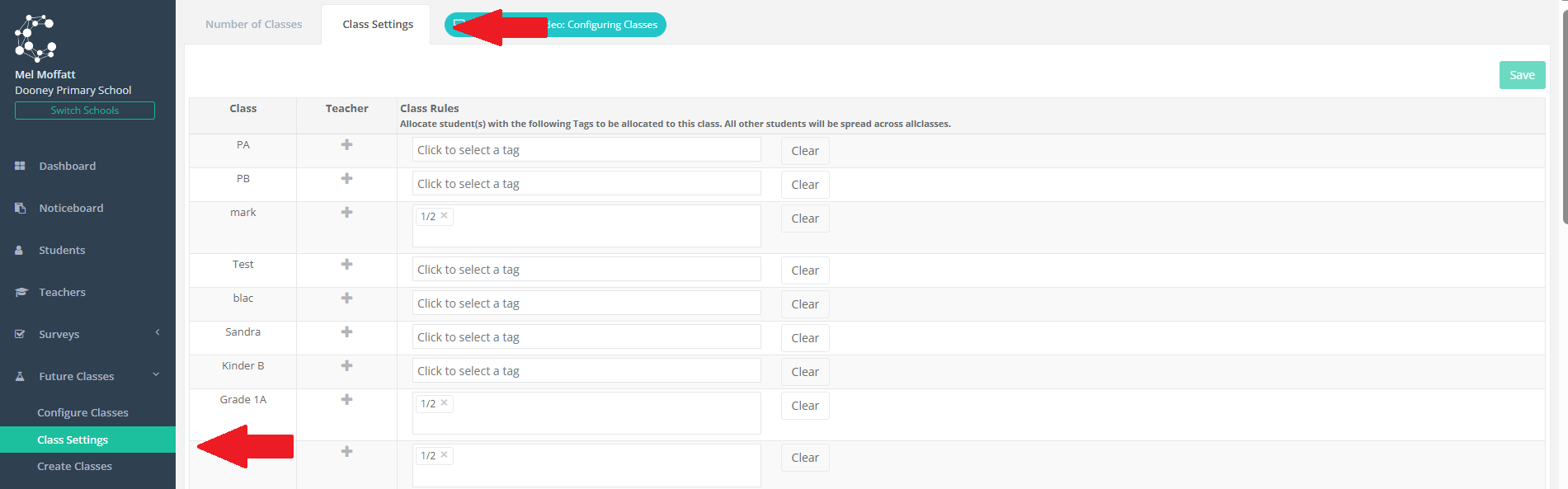
Assign Teachers
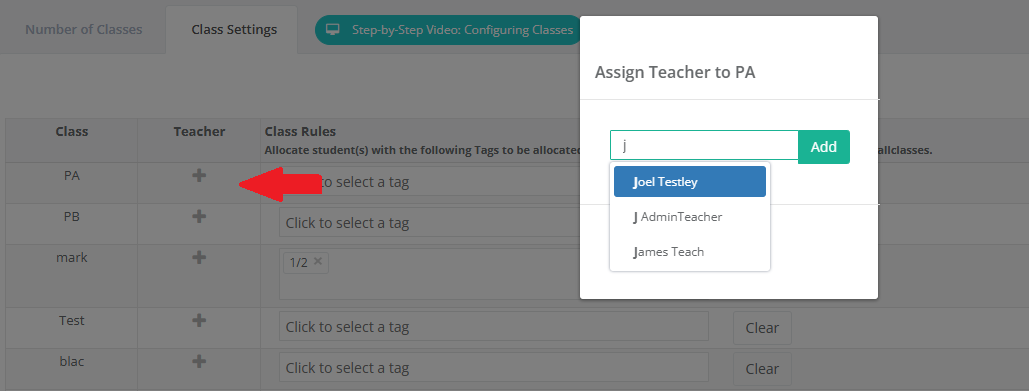
To assign a teacher, click on the + symbol in the Teacher column and then start typing the first few letters of the teacher's name in the pop-up that appears, select the teacher and click add.
Up to four teachers can be assigned to a single class. You can also allocate one teacher to multiple classes.
Setup Class Rules using Student Tags and Special Needs Tags
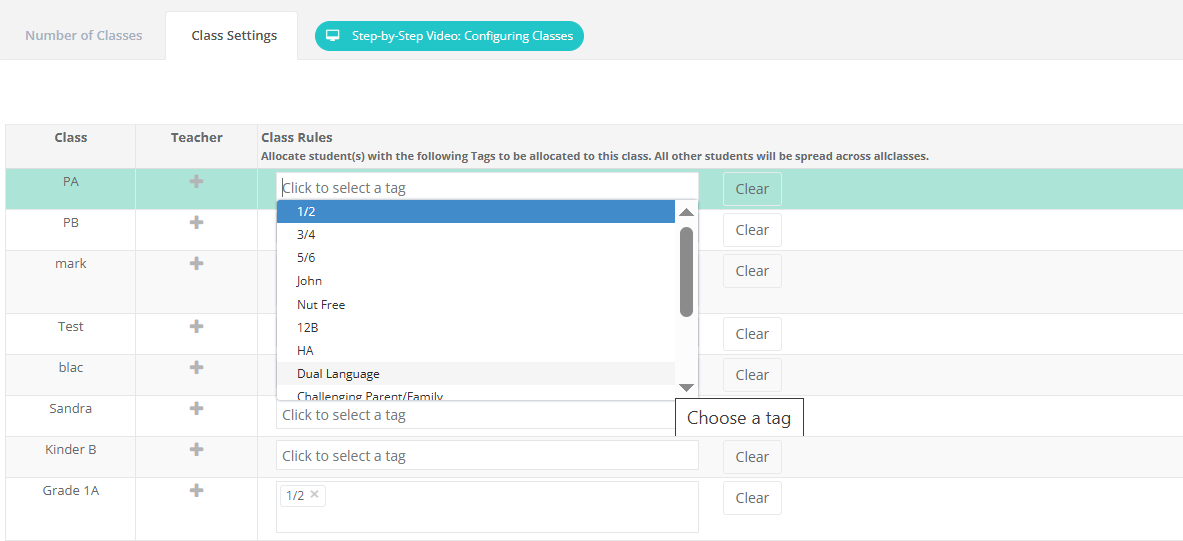
The class rules allow you to allocate students with specific tags to specific classes and teachers.eg. If class PA will be a 'dual language' class, any students with this tag, will be assigned to class PA.
Click on the 'click to select a tag' drop down box and select the Dual Language tag.
Please note, this step involves selecting both Student tags and Special Needs tags. For more information on Tags, please refer to this article.
You are now ready to move onto Step 5 of the Class Creation process - Generating Class Lists!